Paycor Connector
The Paycor Connector lets you integrate Paycor with StaffCircle
The Paycor Connector provides one-way synchronisation of people data from Paycor into StaffCircle. Use it if Paycor is your HRIS and you want it to stay the single source of truth, with StaffCircle keeping its people records in step automatically.
Paycor HRIS: How do I link my account?
Prerequisites
- A Paycor Perform account with HR, Payroll or Company admin rights. This is needed to authorise the connection.
- Access to the Integrations module in StaffCircle (Settings > Integrations).
- Access to the Paycor Developer Portal at developers.paycor.com (use developers-sandbox.paycor.com if you are connecting a Paycor sandbox).
The connection flow tells you which of the steps below your Paycor account needs. Some accounts skip the Developer Portal steps automatically. If a step doesn't appear in the flow, move on to the next one.
Setup
Step 1: Open the connector in StaffCircle
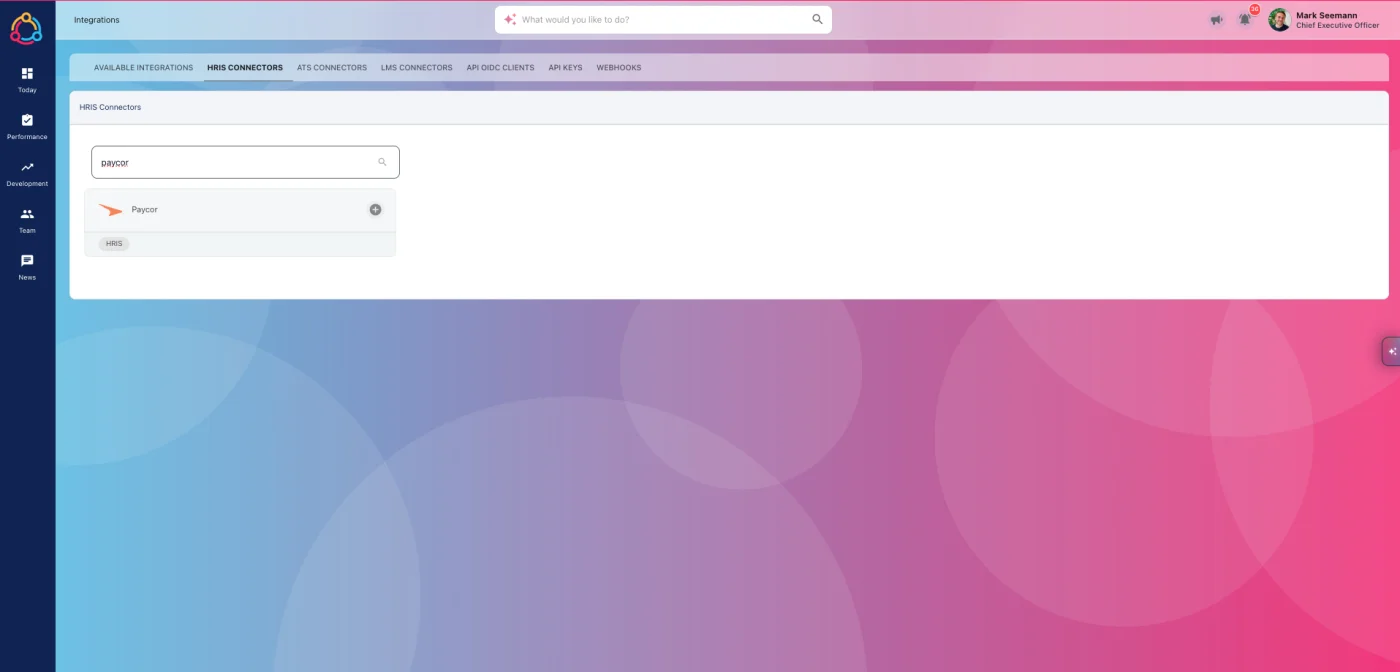
Go to the connectors section in StaffCircle (type connectors into the search bar, or go to Settings > Integrations > HRIS Connectors) and search for Paycor.
Step 2: Install the connector
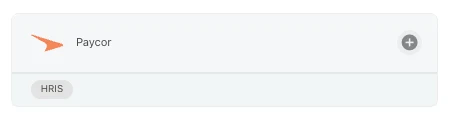
Click the + on the Paycor connector (listed under HRIS).
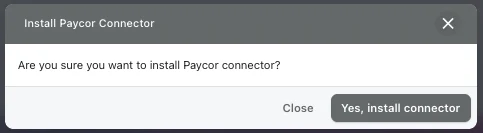
Confirm with Yes, install connector.
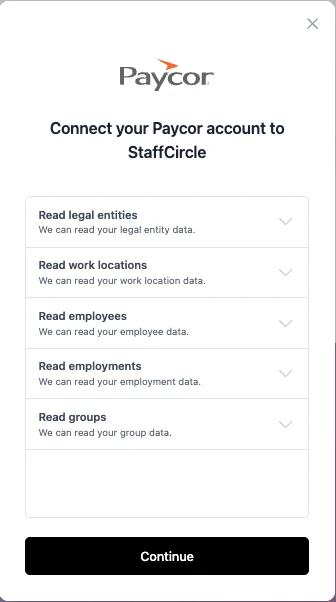
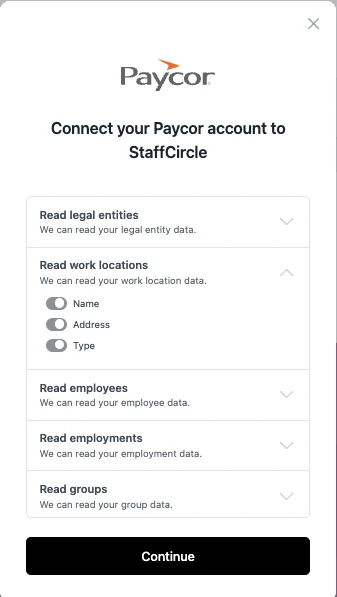
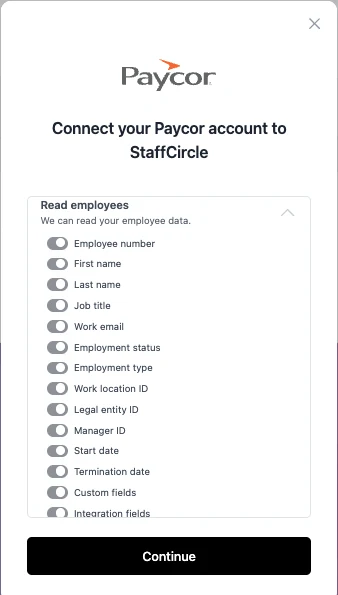
The Paycor connection flow opens in a pop-up. It first lists the Paycor data StaffCircle will be able to read: legal entities, work locations, employees, employments and groups. Expand any section to see its fields, then click Continue. The flow guides you through the remaining steps.
Step 3: Create a Paycor Developer Portal account (if prompted)
If you already have a Developer Portal account, scroll down in the connection flow, click Continue and go straight to Step 4. Otherwise:
- Go to developers.paycor.com and click Sign Up (for existing Paycor clients), then Get Started.
- Sign in with your Paycor username and password.
- Choose who will be the Admin of the Developer Portal account, then click Request Access. The account is created and the nominated Admin receives an email.
Step 4: Build an application (if prompted)
- In the Developer Portal, click Applications, then + Application, and give the application a name (for example StaffCircle).
- Set the Application Type to Standard Application and click Create Application.
- Copy the Application OAuth Client ID and Application OAuth Client Secret, paste them into the connection flow and click Continue.
Step 5: Add the return URL and subscription key (if prompted)
- In your Paycor application, open the Security Connections tab.
- Under Approved Return OAuth URL, click + Add another URL and paste the personalised redirect URL shown in the connection flow.
- Click Save (bottom right) and check for the green Your changes are saved banner.
- On the same tab, copy the APIm Subscription Key, paste it into the connection flow and click Continue.
Step 6: Give the application access to your data (if prompted)
- Open the Data Access tab and enable each access scope listed in the connection flow. The list is personalised to your account.
- Click Save and check for the green confirmation banner.
- Open the General tab, copy the Scope Name, paste it into the connection flow and click Continue.
Step 7: Sign in with Paycor
Click Sign in with Paycor and grant access to the legal entities you want to sync (and any ATS accounts, if applicable). When the sign-in window closes, the connection flow shows a success screen.
Note: it is possible to synchronise multiple Paycor entities or accounts into a single StaffCircle tenant. This is useful when you have numerous sites using separate Paycor accounts but want to use a single StaffCircle account for all engagement, performance and development features.
Step 8: Set up filtering
Back in StaffCircle, set up filtering so that only the people records you need are synced.
Step 9: Initial sync
The first sync can take up to 30 minutes to complete. After that, Auto Sync keeps people data up to date approximately every 3 hours, and Fetch Data pulls in any changes on demand. See HRIS Connectors Set-Up for how to manage the connection once it's live.
Information on data sync
Data flows one way, from Paycor into StaffCircle. Changes made in StaffCircle are not written back to Paycor.
Fields / properties which can be synced
The following properties can be configured to sync from Paycor into StaffCircle (selected properties/fields can be restricted from syncing by a request to our implementation team).
| Paycor data | Fields that can be synced |
|---|---|
| Work locationsPaycor scope: Read work locations | NameAddressType |
| EmployeesPaycor scope: Read employees | Employee numberFirst nameLast nameJob titleWork emailEmployment statusEmployment typeWork location IDLegal entity IDManager IDStart dateTermination dateCustom fieldsIntegration fields |
| EmploymentsPaycor scope: Read employments | Pay ratePay periodPay currencyEffective date |
| GroupsPaycor scope: Read groups | Group nameGroup type |
Legal entity data is also read so employees can be matched to the right company. For help, speak to your Customer Success Manager.
Keep learning
Hand-picked blogs, guides, tools and videos on this topic.