Installing the Microsoft Teams Integration - for the IT Administrator - using Teams Admin
To Install the Microsoft Teams Integration, this must firstly be activated by an Administrator of Office 365 so please advise your internal IT Team to take a look at the below article.
If further assistance is required, please get in touch with the StaffCircle Support Team.
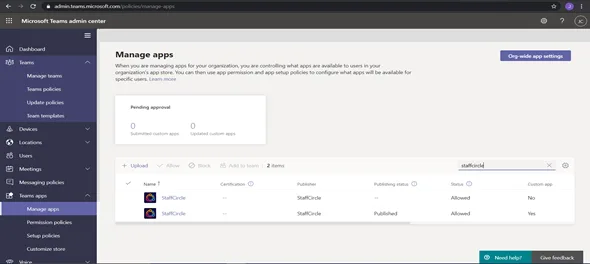
In the left navigation of the Microsoft Teams admin centre, go to Teams apps > Manage apps.
Within ‘Manage apps’ > search for ‘StaffCircle’ > click on the app Staffcircle which shows the status ‘Published’.
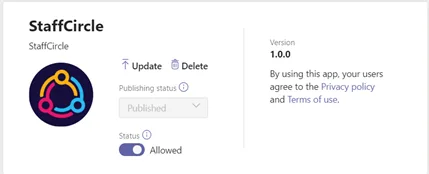
After clicking through to the ‘App’ you set the ‘Status’ to ‘Allowed’ – this will then allow organisation level access to the StaffCircle App.
Please note, although organisation wide access has been given, each end user will have to go to ‘Apps’ within Teams and select ‘StaffCircle’ to enable the integration to their account.
Installing Microsoft Teams Integration - From StaffCircle
Installing the Microsoft Teams integration is easy. To do this, go to Settings > Integrations, and click "Add Integration" below the Microsoft Teams option.
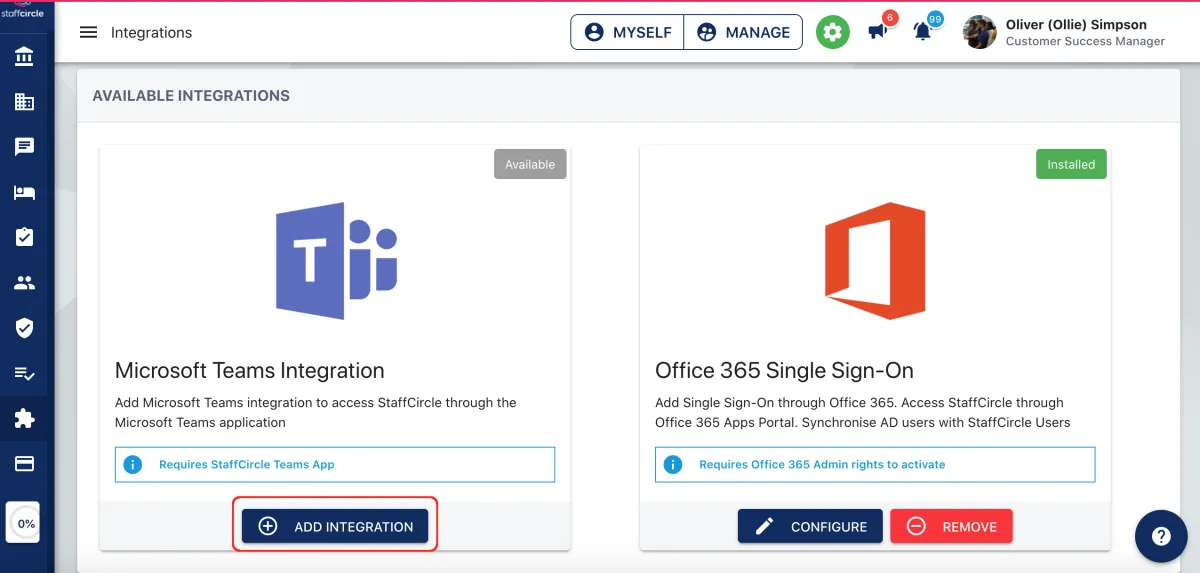
Once that has been done, please see our article on how to add the Microsoft Teams Integration to your own account.
Learn this in the University
Step-by-step training lessons for the roles this article applies to.

Keep learning
Hand-picked blogs, guides, tools and videos on this topic.