Downloading the Teams App
This guide will explain how you can add the StaffCircle app to your Microsoft Teams. We would recommend installing this app after you have completed the sign-up process so that you receive prompt notifications regarding activity with your account.
The Teams app can only be utilised if this has been configured for your platform. We would recommend speaking to your system administrator if you are not sure.
Step One
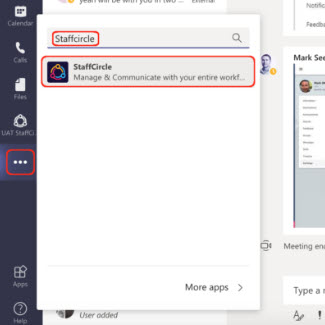
Open Microsoft teams on your device of choice, and select the three dots on the left-hand side bar.
Step Two
Type ‘StaffCircle‘ in to the search bar and select the StaffCircle app from the results.
Step Three
Click the ADD button to add the StaffCircle tab to the left-hand menu.

Step Four
Select the app icon from the left-hand side bar. Upon doing so, you’ll be prompted to sign in using your StaffCircle credentials.

To get started using the integration, start by typing “Help” and click ‘Enter’. This will present you with the StaffCircle Bot Commands that you can use to control various elements of the StaffCircle Platform.

Related knowledge-base articles
Practical answers that go with this lesson — matched to what your role can do.
 Knowledge baseAdd Microsoft Teams Integration - End UserKnowledge base · integrationsRead article
- Knowledge baseOverview of StaffCircle for Microsoft TeamsKnowledge base · integrationsRead article
- Knowledge baseInstalling the Microsoft Teams Integration - for the IT Administrator - using Teams AdminKnowledge base · integrationsRead article
Keep learning
Hand-picked blogs, guides, tools and videos on this topic.