Google SSO Setup
Before you get started
In order to fully utilise this integration you must have a Google Workspace account where you have the relevant access to obtain the credentials required to set up and administer the integration.
You'll also need:
- A project set-up, Google Support Docs can be found here
- To install the StaffCircle app from Google Workspace Marketplace here
- Step one: click the above link
- Step two: click Admin Install
- Step three: review pop-up and click continue
- Step four: review pop-up, agree to Terms of Service, then click Authorize
Google Workspace: Console
Step One: Creating a service account
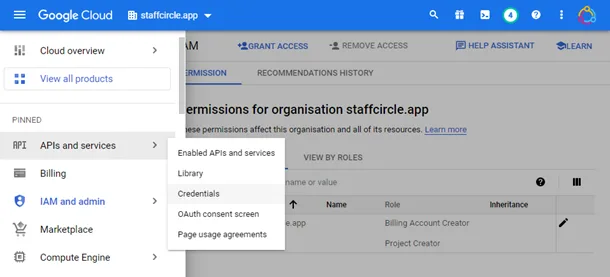
1. Go to Google APIs and Services and select Credentials
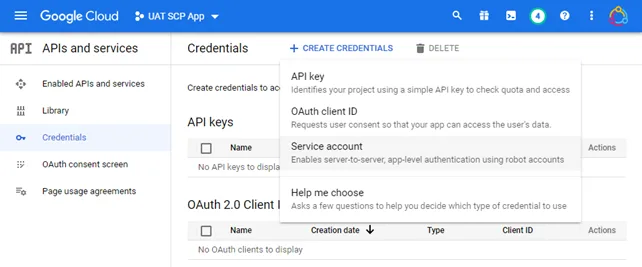
2. Click + CREATE CREDENTIALS then Service Account
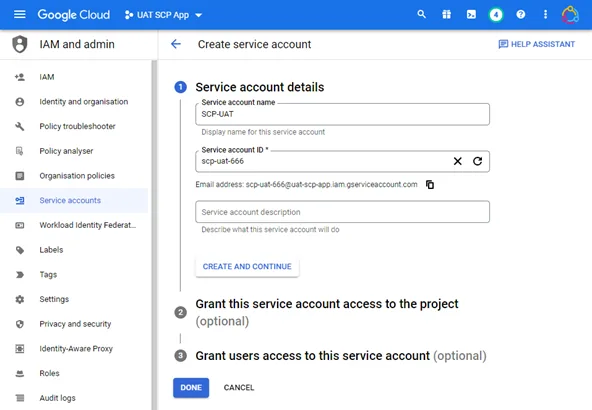
3. Within Service account details add the account name, account ID and a description (optional), then click Create and Continue
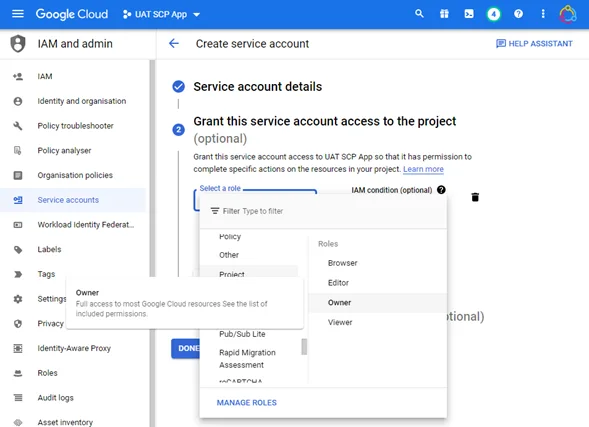
4. In Grant this service access to project within Select a role, select Project>Owner, then click Continue
5. In Grant users access section, leave the settings blank then click Done
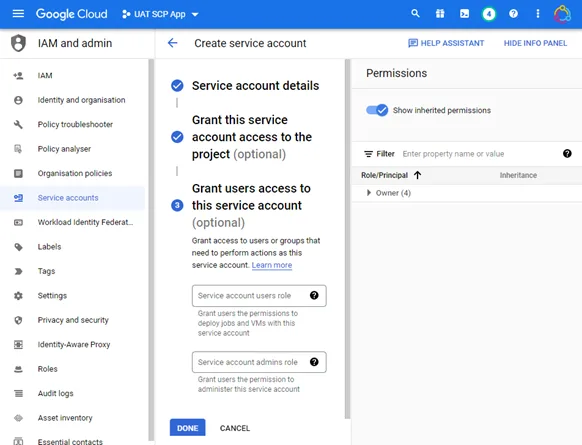
Step Two: Create a key
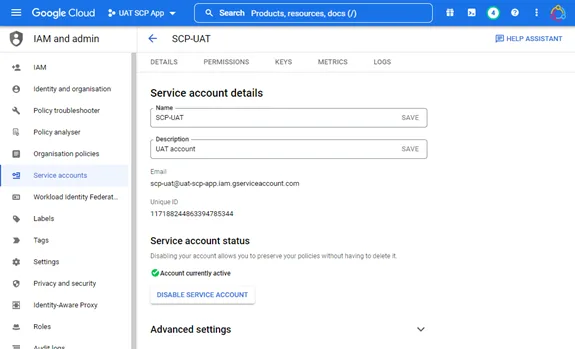
1. Still within the Credentials page, click into the service account you’ve just created and then click KEYS
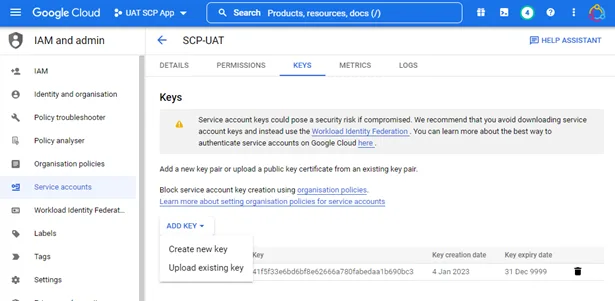
2. Click ADD KEY and then Create new key
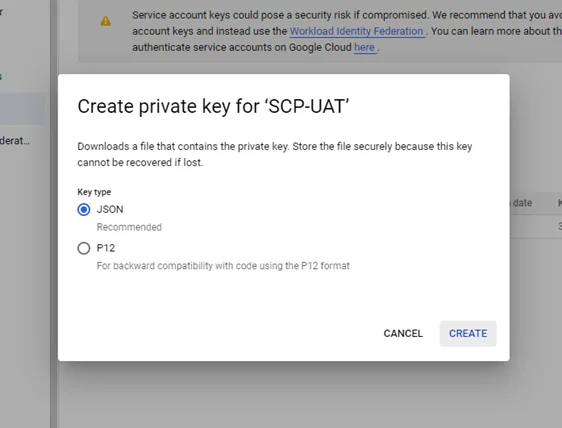
3. Select JSON and then Create. This will download a text file containing your key, you’ll need the client ID from this shortly.
Step Three: Enable Admin SDK API
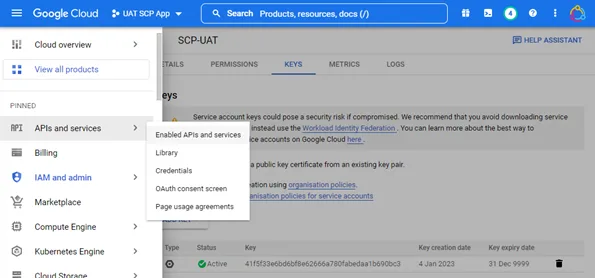
1. Go to Google APIs and Services and select Enabled APIs & services
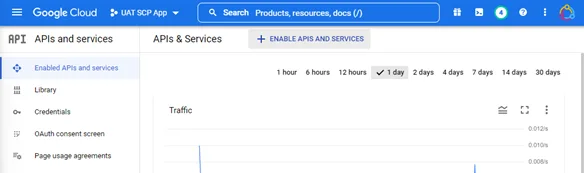
2. Click + ENABLE APIS AND SERVICES
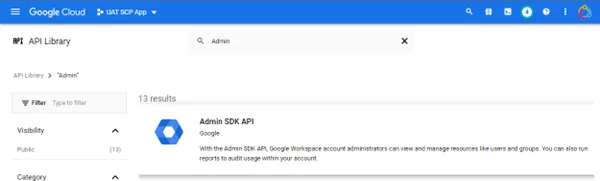
3. Search for “Admin” then click Admin SDK API
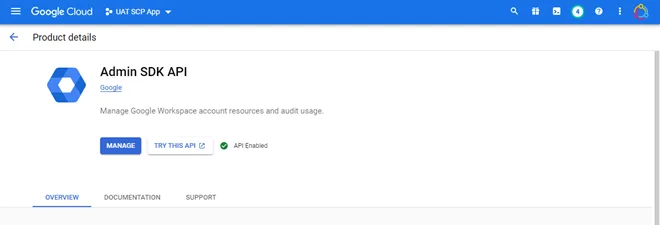
4. If not already enabled, click Enable, or Manage to manage the API
Google Workspace: Admin Console (admin.google.com)
Step Four: Authorizing the service account
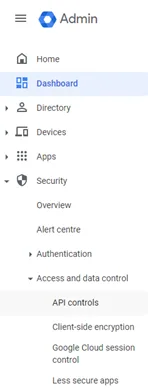
1. Open the menu and select Security>Access and data control>API controls
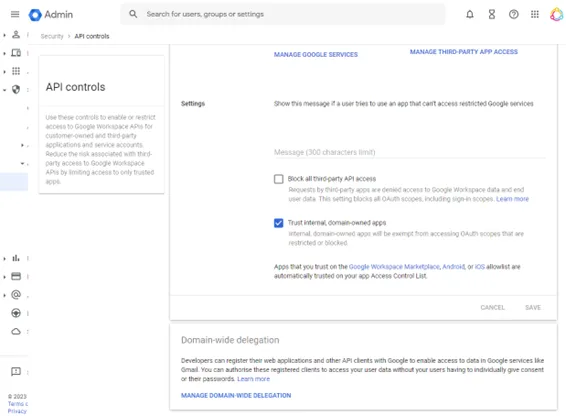
2. Scroll to the bottom and click Manage Domain-Wide Delegation
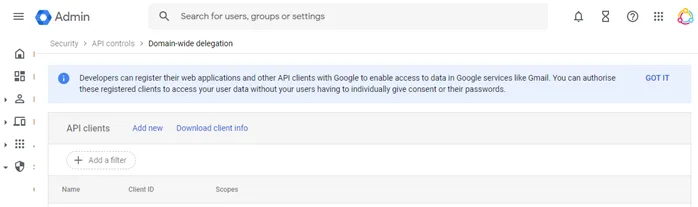
3. Click Add New
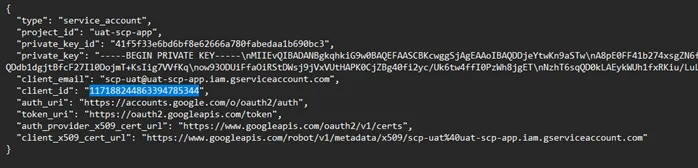
4. Go to your JSON txt file and copy the Client ID
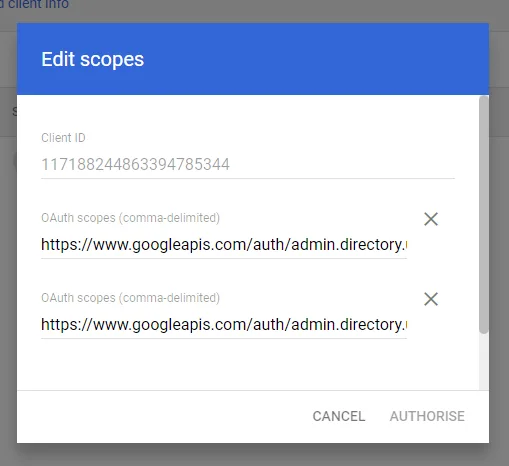
5. Paste your Client ID from the JSON txt file into the Client ID field and paste the following two URLs into the OAuth scopes (comma-delimited) field (you can paste both in the same field, or into individual fields), then click Authorise
https://www.googleapis.com/auth/admin.directory.user,
https://www.googleapis.com/auth/admin.directory.user.readonly
StaffCircle: Google SSO Integration
Step One: Installation
1. Go to your StaffCircle platform and into Settings>Integrations
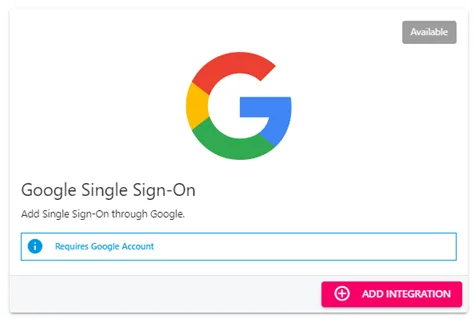
2. Click Add Integration
Step Two: Configuration
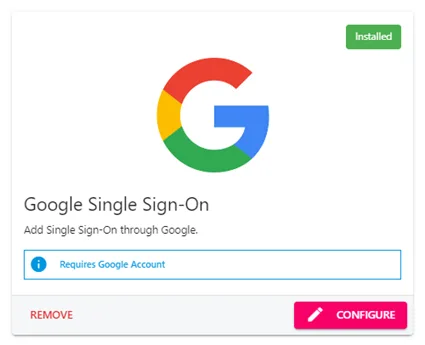
1. Click Configure
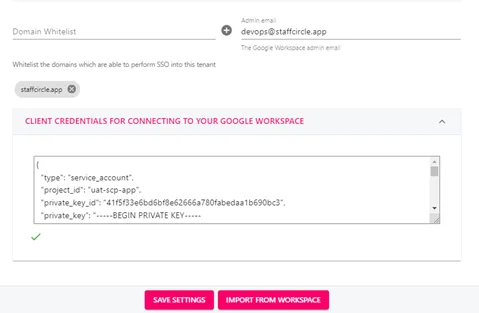
2. Whitelist your company domain, add an Admin email and Client Credentials for Connecting to your google workspace and paste your JSON txt file, click Save Settings
3. Scroll up and administer your sync settings
Settings Sliders




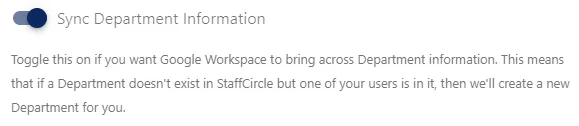
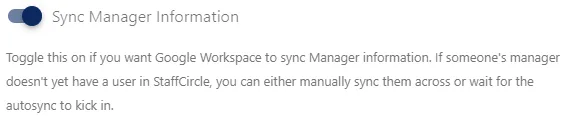

4. Once setting sliders have been set click Save Settings.
Step Three: Import & Sync
1. Click Import from Workspace

2. Refresh the page and scroll to the Google Users table.
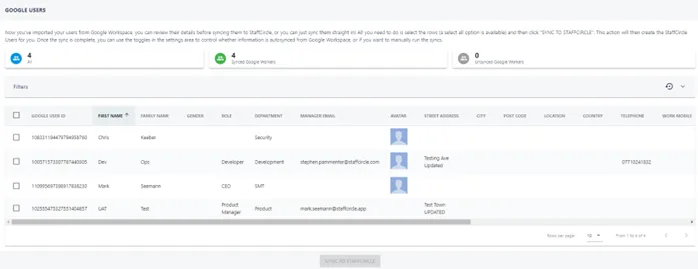
3. Select the users you want to sync or click select all, then click Sync to StaffCircle. Users are available within your People & Groups area of the platform and can now login with Google SSO.
Step Four: Manual Sync
Individual users can be synced at anytime within the integration without affecting the auto sync.
1. Select the user from the Google Users table, click Sync to Workspace.