Add Microsoft Teams Integration - End User
N.B. To install the Teams integration and for it to work properly, your StaffCircle Administrator will have first had to have turned it on in the Settings > Integrations area.
Open your Microsoft teams app, start by clicking on the three dots on the left hand side. Type "StaffCircle" in to the search bar and click on the StaffCircle app.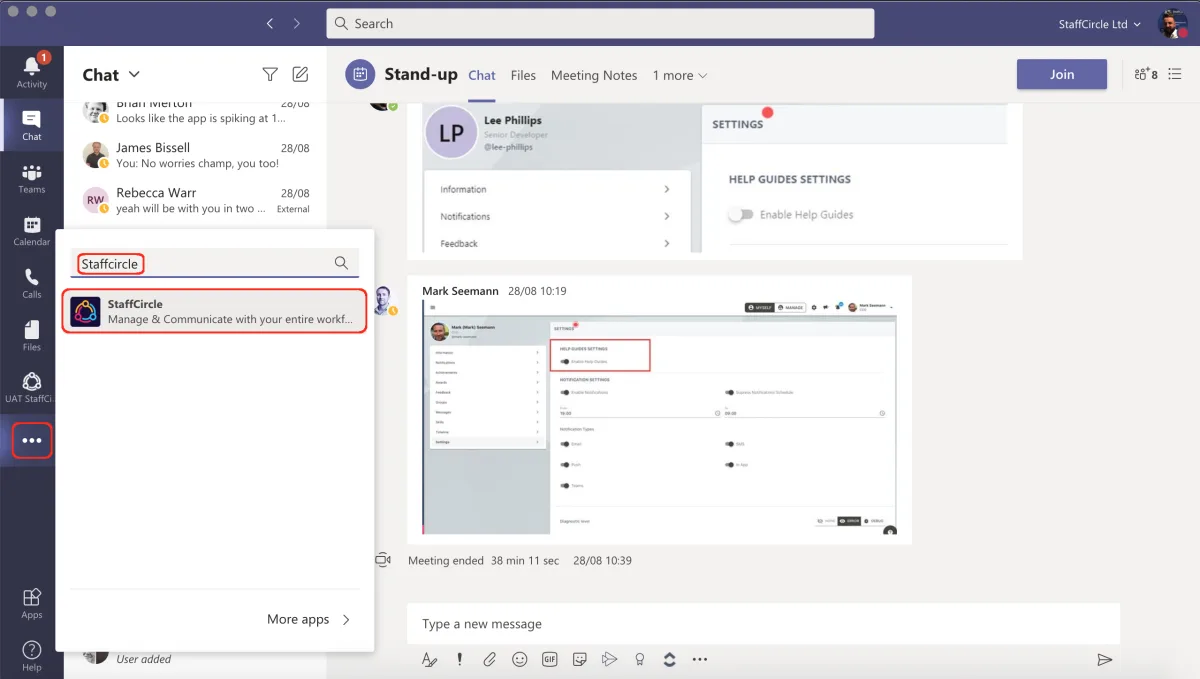
Then click "Add".
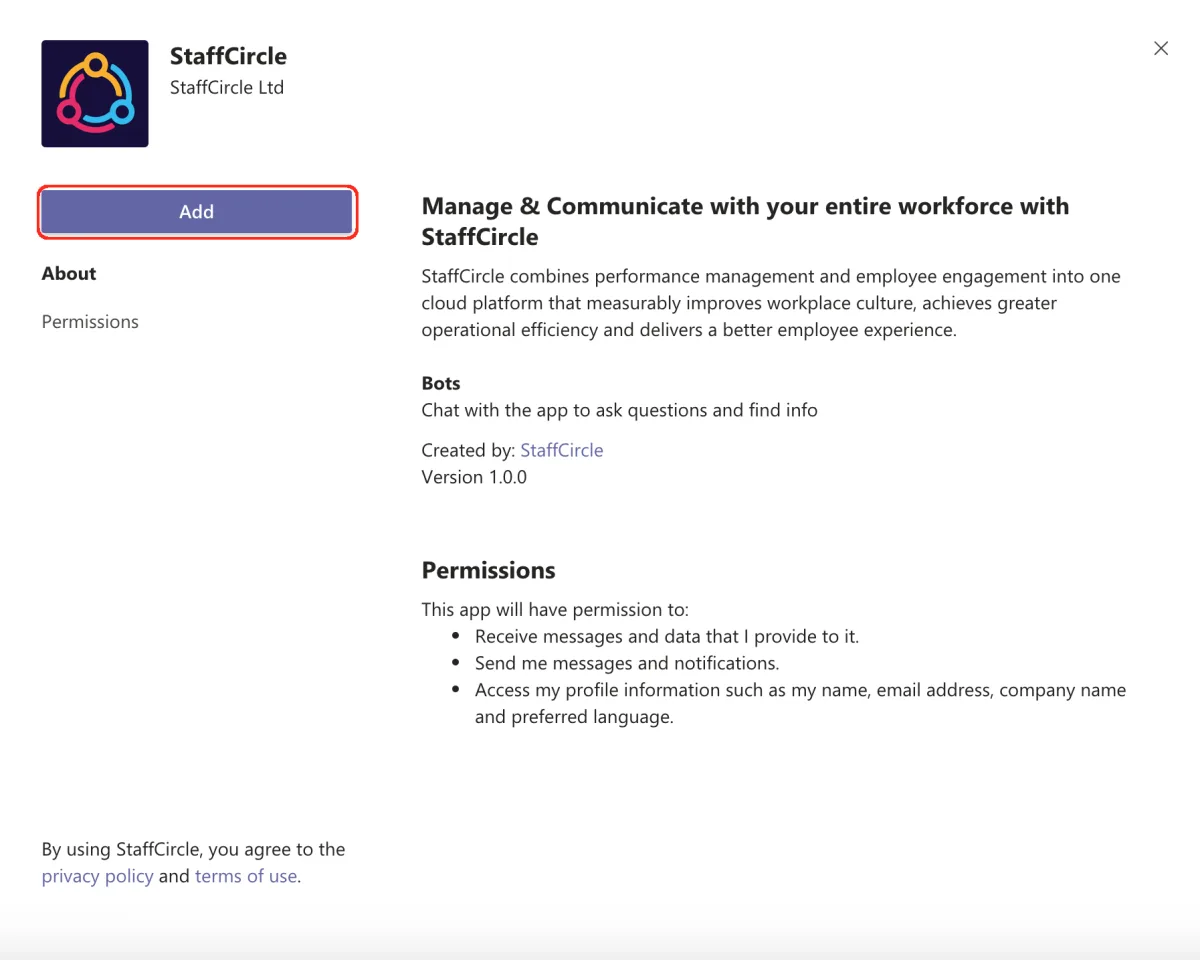
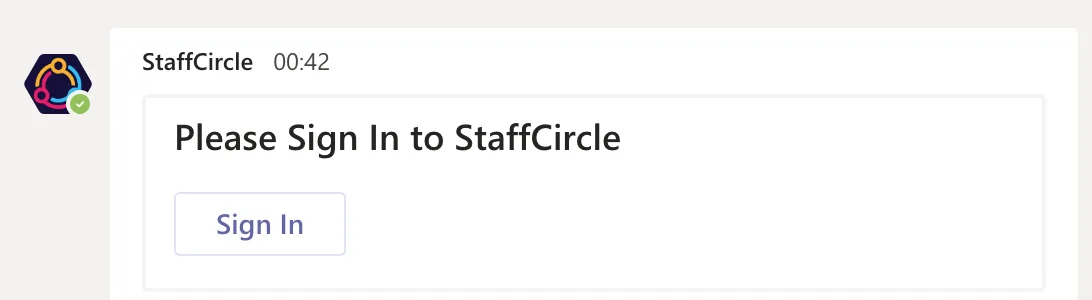
From there, the StaffCircle tab will be added on the left hand menu. You'll be asked to sign in using your StaffCircle credentials. Click "Sign in".
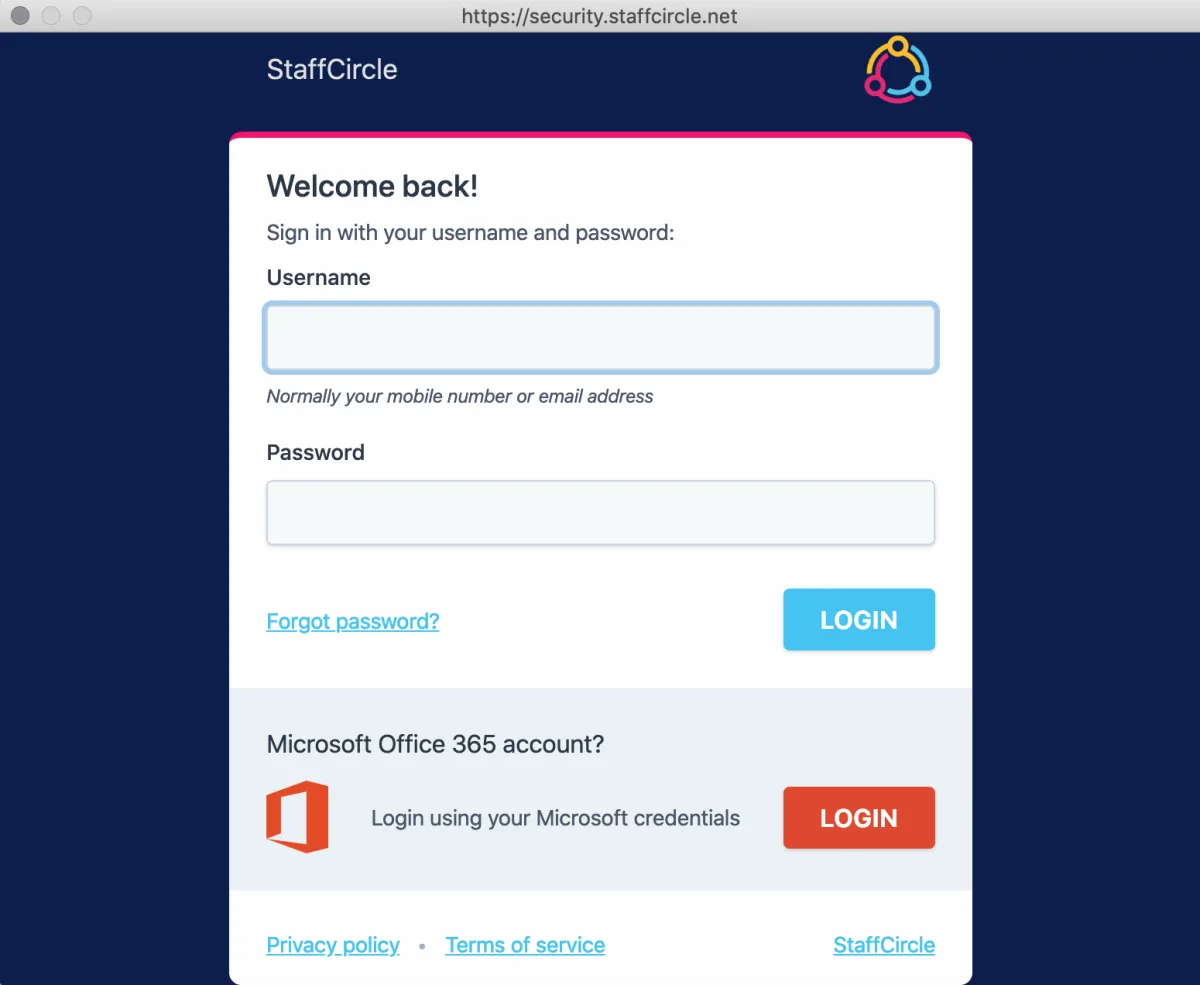
From there, add your StaffCircle credentials in the normal fashion, either by adding your username & password, or via Office 365 Single Sign On, if the StaffCircle Office 365 Integration has been configured on your org.
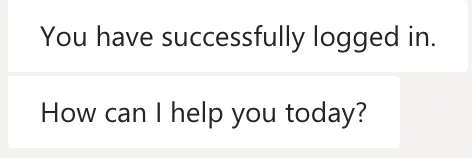
The StaffCircle bot will then confirm your login.
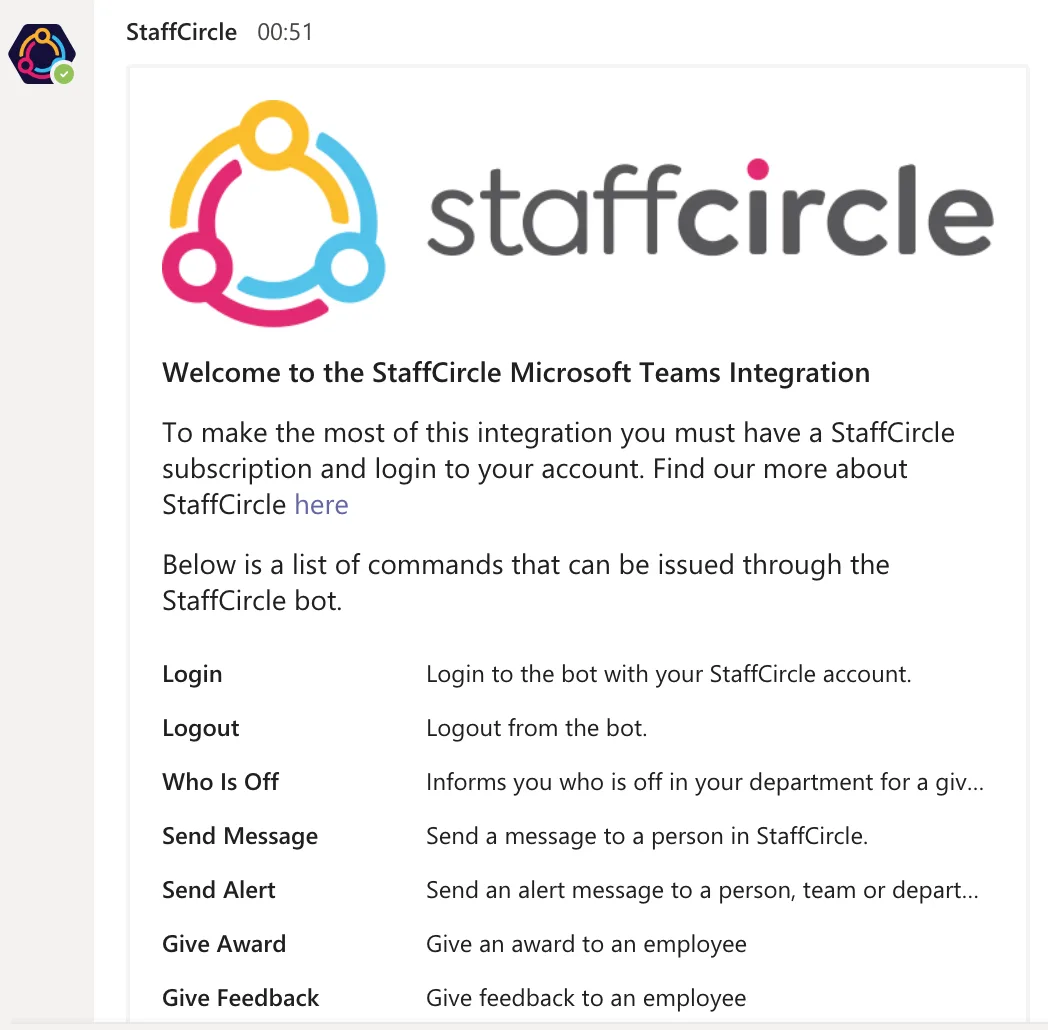
To get started using the integration, start by typing "Help" and press Enter on your keypad, which will present you with the StaffCircle Bot Commands that you can type to control various elements of the StaffCircle Platform.
Learn this in the University
Step-by-step training lessons for the roles this article applies to.

Keep learning
Hand-picked blogs, guides, tools and videos on this topic.