Downloading StaffCircle as a Desktop App (PWA) for Windows so you can auto start on boot up
It is possible to have StaffCircle automatically run when a user restarts their windows computer. To do this you need to install StaffCircle on your desktop as an App.
1. Log in to the StaffCircle platform via your web browser (i.e Chrome).
2. Click this icon in the URL bar.
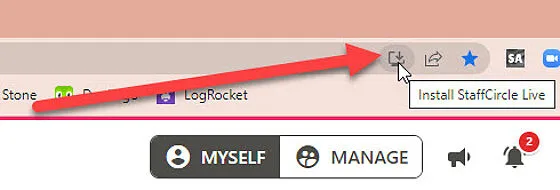
3. Click the blue 'Install' button.
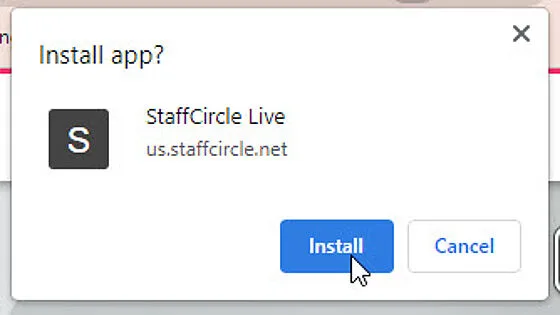
4. The app will automatically open on your browser, and a desktop icon will appear on your device.
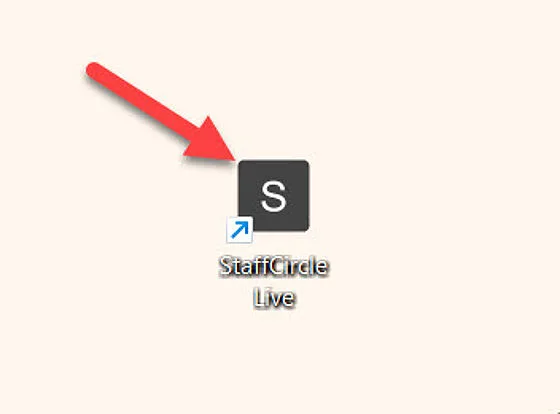
To automatically run the StaffCircle desktop app when you start up your device, follow the instructions below.
1. Open the 'Run' application on your windows device by holding down the Windows key and pressing 'R' on your keyboard.
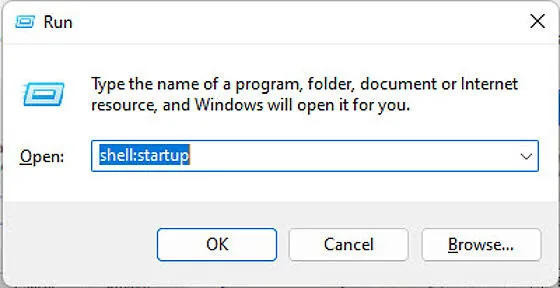
2. In the run command box (pictured below), enter 'shell:startup' in the field and click 'OK'. This will open the 'Start-up' folder on your device. Keep this folder open to complete the proceeding steps.
3. Right-click the StaffCircle desktop icon, then select 'Open File Location'.
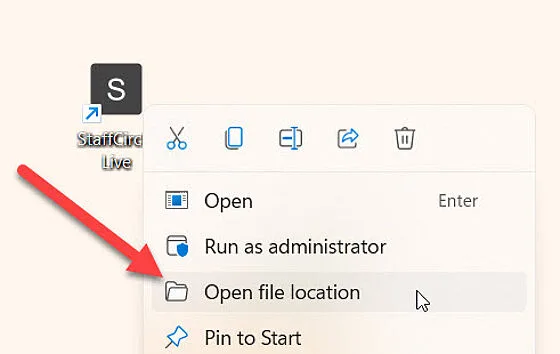
4. Move the StaffCircle application from its current file location to the 'Start-up' folder.
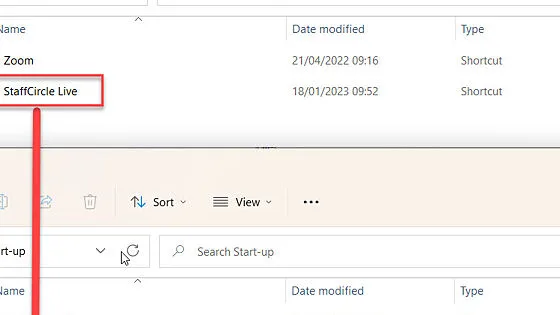
5. The next time you start up your Windows device, the StaffCircle desktop application will automatically open.
Your IT Team can perform this process Mass for your users if your domain is centrally manage