v.1.50.7 (05/11/2026)
October 2026 V(1.50.7)
StaffCircle now has fully integrated LMS capabilities with the launch of our new training content partner, iHasco. iHasco courses can be run and completed without leaving StaffCircle, with skills and course pathways added on top, and completions and certificates sit alongside the rest of your training records.
This release also adds Training Pathways for all your other training content, letting you assign a set of courses as one objective, along with half-day company holidays, refreshed Manage screens and a rebuilt Training activity dashboard. You can also publish training into the comms feed with the new Training article.
iHasco integration
6 itemsIf your organisation uses iHasco for compliance and health and safety training, you can now connect it to StaffCircle. Your licensed iHasco courses come into your Course Library, completions are logged against each person's training record with the certificate attached, and people can take their iHasco courses without leaving StaffCircle.
Getting started
- In iHasco, go to Settings → API Access and create an API key.
- In StaffCircle, go to Settings → Integrations → Available Integrations, open iHasco Integration and click Add Integration.
- Paste in your API key and click Connect. StaffCircle checks the key with iHasco before saving it.
- Choose your sync settings, then click Sync now.
Nothing is added to your Course Library until you choose which courses to sync. A new connection starts on Manual, with no courses ticked and Autosync off.
Connect your iHasco account with an API key
Once connected, the iHasco page shows the connection status, the last four characters of your key and when it was last checked. Use Reconnect if you rotate your key in iHasco, or Disconnect to remove the connection and delete the stored key.
The key is encrypted and is never shown in full after you enter it.
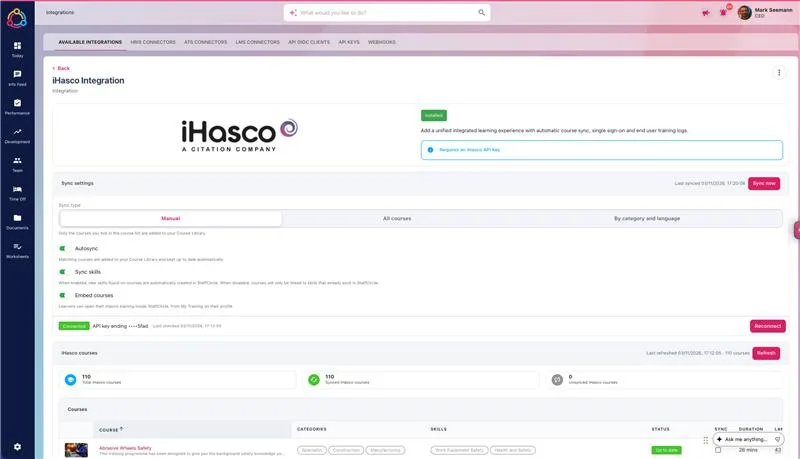
Choose which iHasco courses go into your Course Library
The iHasco page lists every course on your iHasco licence, with search and filters by language and category. Each course shows its summary, duration, categories, languages, pass mark and how often it needs retaking, plus a status of Never synced, Changed since sync or Up to date.
Choose how courses are synced:
- Manual: tick the courses you want.
- All courses: every licensed course.
- By category and language: only courses that match the categories and languages you pick.
Synced courses arrive in your Course Library with their image, a full description listing each section and its learning outcomes, the duration, number of lessons, retake frequency, pass mark and a link to the course. Categories are matched to your existing Course Library categories by name, and any that don't exist are created. Turn on Autosync to keep courses up to date automatically. If iHasco withdraws a course, it is archived in your Course Library rather than deleted.
Skills linked to every iHasco course
Each iHasco course comes with two to four relevant skills, each at a level from 1 (Entry) to 4 (Expert). When courses sync, StaffCircle uses AI to match these to the skills you already have by meaning as well as name, so a course skill called "Manual Handling" can link to your existing "Safe Lifting Techniques" skill rather than creating a duplicate.
Sync skills is on by default. Turn it off if you only want courses linked to skills that already exist in StaffCircle. Skills you add to a course yourself, or levels you change, are never overwritten by a sync.
Completions, training logs and certificates recorded for you
iHasco users are matched to people in StaffCircle by email address. When someone passes an iHasco course, StaffCircle picks it up within about ten minutes and creates a training log with the completion date, expiry date and score. If they have an open training objective for that course, it is set to 100% as well.
The iHasco certificate (PDF) is saved on the training log, so you keep proof of training even if you later disconnect iHasco. Certificates are stored in a protected folder: they open from the training log for anyone who can see it, and can't be moved or deleted from Documents.
My Training: iHasco learning inside StaffCircle
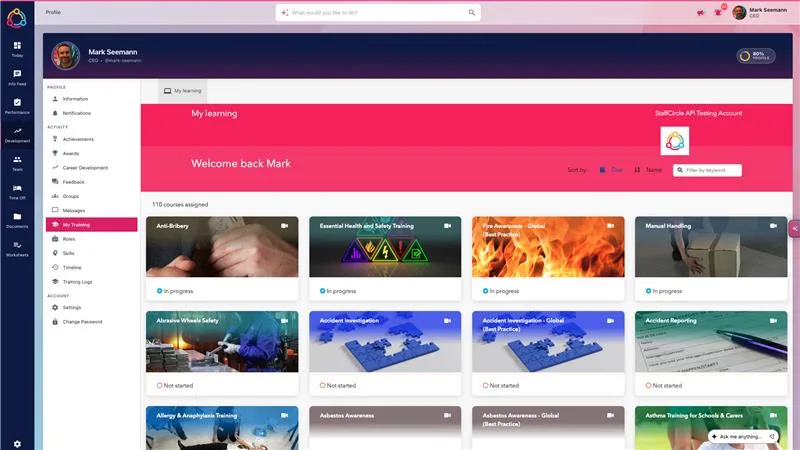
Turn on Embed courses in the iHasco sync settings and each person gets a My Training page on their profile, also linked from My Development in the Development menu. It opens their iHasco learning straight away, with no second login.
The existing Training item on the profile is now called Training Logs. If a browser blocks the embedded sign-in (Safari, private browsing or strict privacy settings), an Open in new tab button is shown. People without an iHasco account are asked to contact their training administrator.
Training articles in the news feed
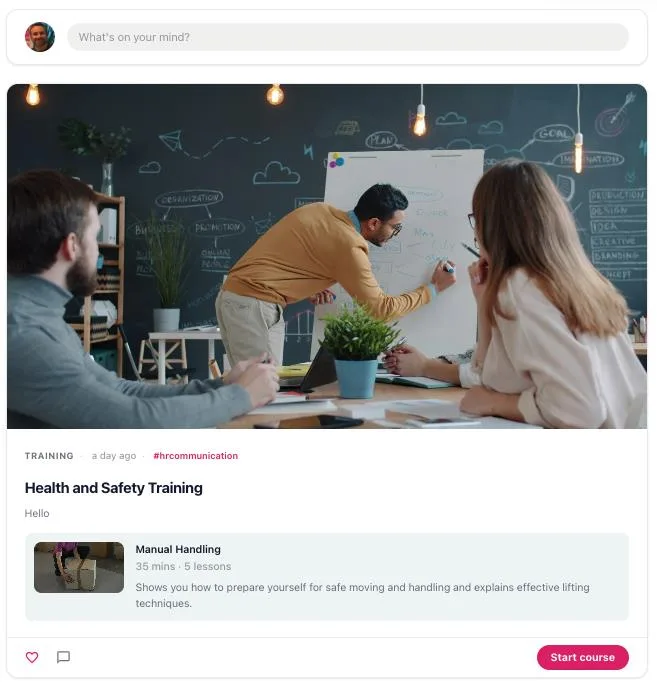
A new Training article type in the Content Wizard lets you post an iHasco course to the feed. The post shows the course image, name, duration, number of lessons and description, with a Start course button that opens the course inside StaffCircle.
Everyone who can see the post can see the course. Anyone not enrolled on it is told to ask their manager, and if the course is later removed the post says it is no longer available. Training articles are available once Embed courses is on.
Training Pathways
2 itemsGroup courses from your Course Library into an ordered pathway, such as onboarding or a compliance programme, and assign the whole pathway to someone as one objective. Pathways work with any course in your Course Library, including iHasco courses.
Build Training Pathways
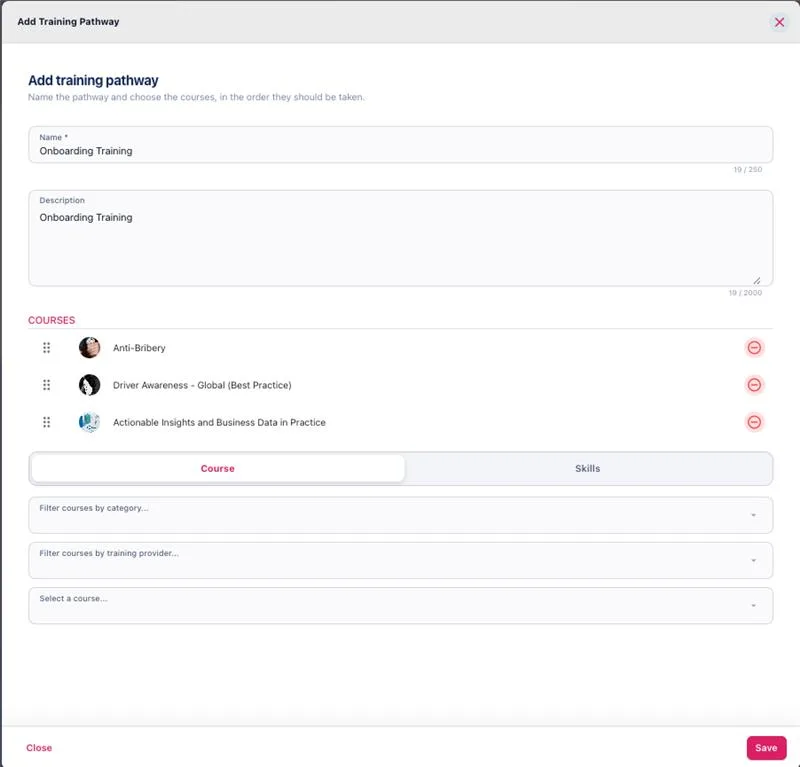
Give the pathway a name, description and icon, then add courses in the order they should be taken. Drag courses to reorder them. Each course can appear once, and archived courses can't be added.
Pathways you no longer need can be archived. They can't then be assigned, but stay visible on objectives already using them.
You'll find pathways under Development settings → Courses → Course Pathways if you have the Summer UX update turned on, or Settings → Training → Course Pathways if not. Creating and editing pathways needs the Training & Skills add, update or delete permission.
Assign a pathway as one objective
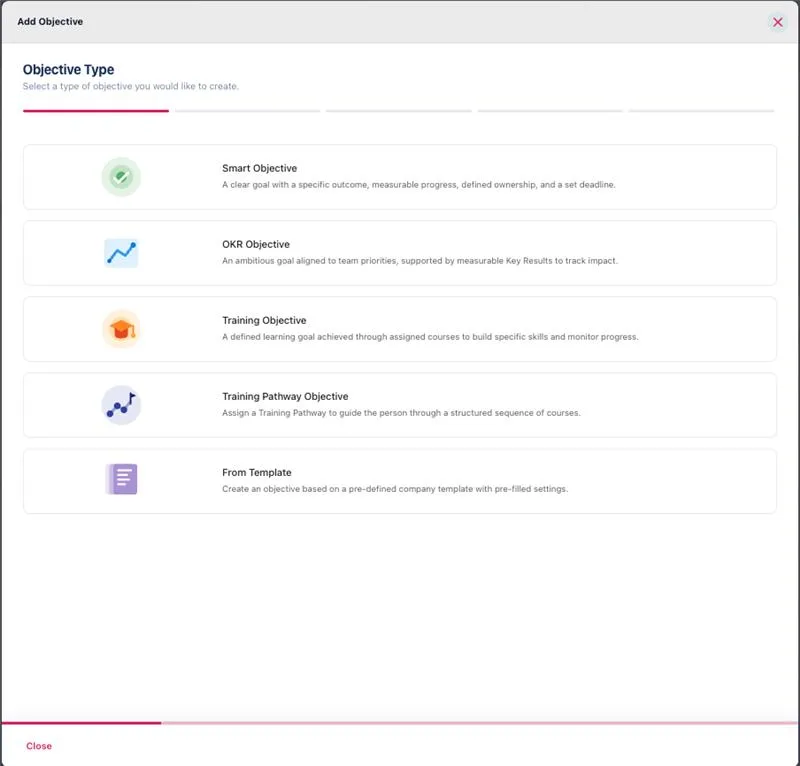
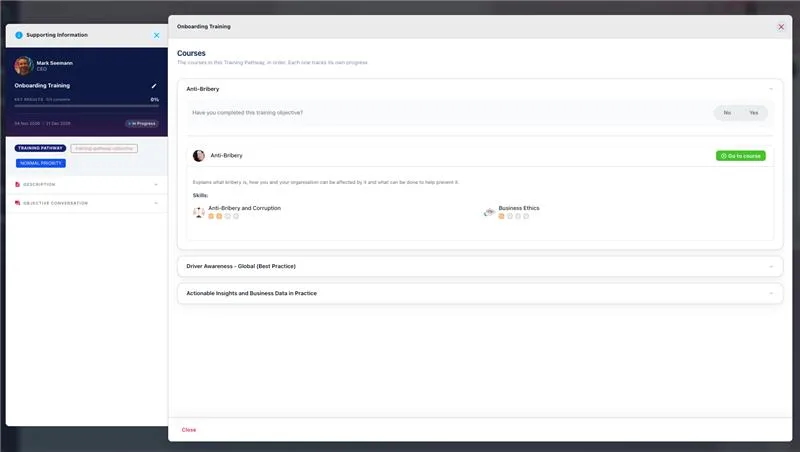
Choose Training Pathway Objective when adding an objective, pick a pathway and assign it to one or more people. Each person gets one pathway objective containing a training objective for every course, in order. The title and description are filled in from the pathway.
- Progress is the average across the pathway's courses. Courses declined by an approver are left out.
- Any course the person has already completed, with a training log that hasn't expired, starts at 100%.
- Courses completed in iHasco or another connected learning platform update on their own.
- The person gets one notification and one reminder for the whole pathway, not one per course.
- The reviewer can close the pathway once every course is at 100% or declined.
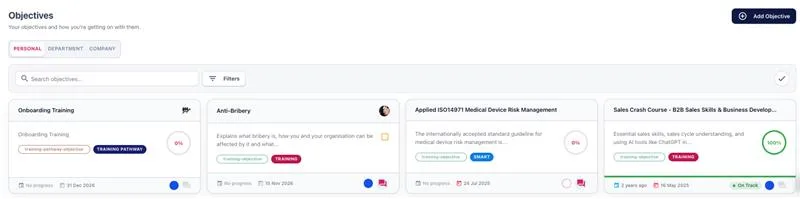
The list of courses is fixed when the pathway is assigned, so later changes to the pathway don't affect objectives already in progress. The objectives list has a new Training Pathway filter.
Also new
1 itemHalf-day company holidays
When adding or editing a company holiday, you can now choose Full day, Morning or Afternoon. This covers days like Christmas Eve when you close at lunchtime, without having to gift everyone an extra half day or add a half-day absence for each person.
The closed half can't be booked, and the open half books as a normal half day. A full-day booking on that date uses half a day of allowance. Half-day holidays show an AM or PM tag in the company holiday list and on the absence, team and personal holiday calendars. Existing company holidays stay as full days.
For hours-based bookings, only the hours outside the closed half are counted, using your default morning end and afternoon start times in Holidays & Absences settings.
Improvements
13 itemsRefreshed Manage screens
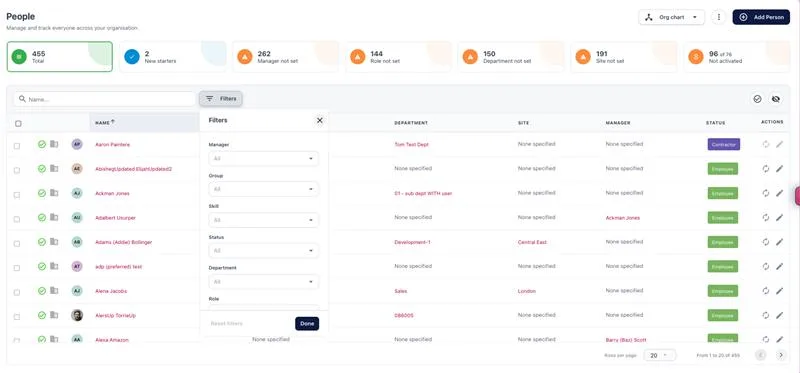
The Manage list screens now match the redesigned dashboards. On People, summary tiles across the top show totals such as new starters and people without a manager, role, department or site. Filters sit in a single panel, and the Org chart menu opens the company, extended, region, department and group charts.
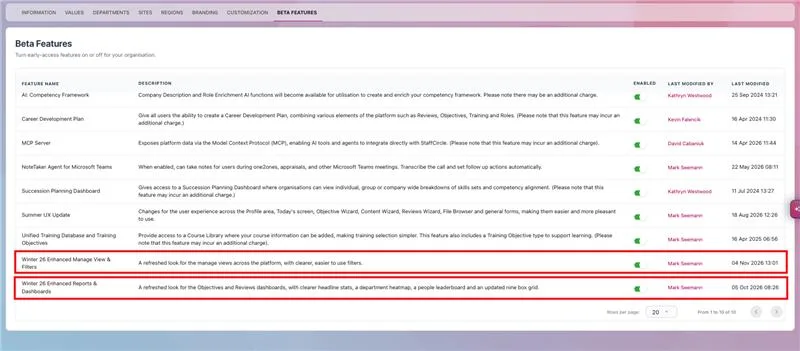
To try it, turn on Winter 26 Enhanced Manage View & Filters in the Beta Features tab of your company settings.
Redesigned report pages
The Objectives & Reviews, Feed, People and Time Off report pages have been redesigned to match the Today screen. Reports are grouped by purpose, each with a short description of what it shows. You can search, switch between list and card view, and see which reports are protected from their Protected badge.
A more complete Training activity dashboard
The Training activity dashboard (Development → Insights) now lists every course with an open training objective, including Training Pathway courses, as well as courses with a training log in the period. It shows six figures: Courses in use, In progress, Completed, Skills acquired, Courses not in use and Expired training. Click any of them to narrow the list.
Expired training now shows everyone whose most recent training on a course has lapsed with nothing current to replace it, whatever period you've selected. Large course libraries now load when you include courses not in use.
Training is logged as soon as a course is completed
When someone completes a course in a connected learning platform, their training log is now created straight away, even if they have an open training objective for that course. Previously the log waited until the reviewer closed the objective. Validation objectives, where a course needs them, are created at the same time.
The objective is still set to 100% for the reviewer to close, and closing it doesn't create a second log.
Pass marks and clearer course details
Any course can now have a pass mark (%), set next to Lessons on the course form and shown in the course details. iHasco courses fill this in automatically.
Across the Course Library, descriptions are formatted with headings and lists, durations read as hours and minutes (for example "26 mins"), the course image has its own column in the list, and Go to course in the course preview opens the course.
Documents on objectives and reviews stay with them
Files uploaded from your computer to an objective conversation, a review conversation or a review's supporting information are now stored on that objective or review. They no longer go into anyone's Personal Documents, so personal folders stay a clean personnel file.
When attaching a file, the person the objective or review is for can also pick one from their Personal Documents. Managers and reviewers can pick from Company Documents.
Clearer progress updates on objectives
When an objective has passed its end date, you're asked to choose the date the progress was made, up to the end date. The update then shows that date with "Added on" and today's date beside it. To record progress after the end date, extend the end date first.
The status on a progress update is no longer set to On Track by default, so it only shows the status you choose.
Bank holidays shown in holiday entitlement
The entitlement breakdown in Holidays and Absences now includes a line for bank holidays, alongside length of service, carry over and allowance.
Filter the employee skills page by capability
The employee skills page has a capability filter, and you can select more than one capability at a time.
Remove a Next Role from Career Development
A Next Role added to someone's Career Development can now be removed, so you can replace it with a different role.
Add or remove many people from a group at once
When managing who is in a group, you can now select several people at once instead of switching each person on one by one. All the additions and removals are saved together, up to 1,000 people at a time, which makes setting up large groups and group visibility much quicker.
Each person added or removed still appears in the history and receives the usual notifications.
People can no longer be deleted by mistake
The option to delete a person has been removed. Deleted profiles were often needed again later, so deactivate people who have left instead. Their history stays in place.
Training Pathway and iHasco data available for reporting
The Insights API now includes course pass marks, training log scores and pass marks, your course pathways and the courses in each, and which pathway each Training Pathway objective was assigned from. You can use these in Power BI and other reporting tools.
Platform improvements
20 itemsToday screen shows everything with the Summer UX update on, and now has movable components
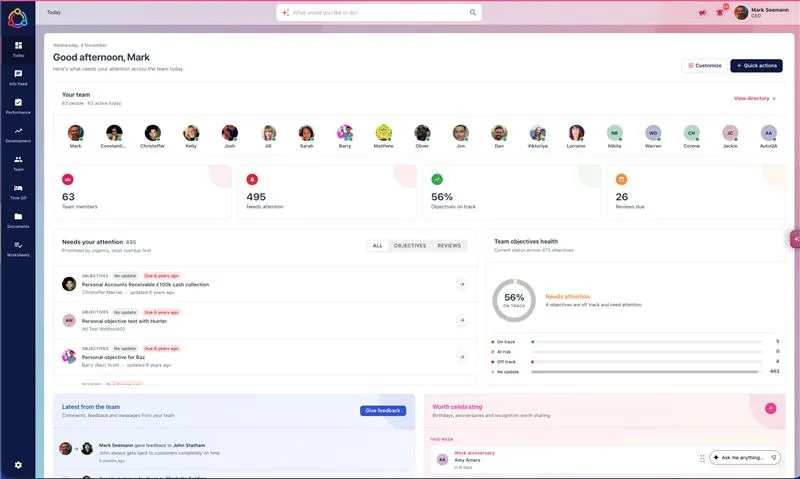
With the Summer UX update turned on, the Today screen now shows Worth Celebrating entries, reviews and objectives, as it does with the update off. You can now also move and resize the components on the Today screen.
Needs your attention now includes objectives you are the reviewer for, including training objectives and overdue ones. Managers also see their direct reports' objectives there, even when their security group doesn't have Everyone access.
Correct review due dates
Review due dates in the new design now match the date set on the review, and reviews are no longer shown as overdue on the wrong date.
Review template settings applied to every review
Reviews now always take the Sensitive, Leadership approval and Require all feedback settings from their review template, whichever screen they're created from. Linking a review template to a competency now saves.
No duplicate reviews when switching to a fixed schedule
Changing a review template from recurring on completion to recurring on a fixed schedule no longer creates extra reviews. Before creating the next review, StaffCircle checks whether the person already has one from that template, with the same manager, for that period.
Objective conversations available in reviews
When both the review template and the objective allow conversations, the objective conversation can now be used from within the review.
Reopening and seeing reviews
A completed review that needed leadership approval can now only be reopened by its leadership approver, from every screen. The reopen feedback icon is always visible rather than only on hover. Reviews on a template set to be visible to the group manager now show for that group manager.
Tighter access to review information
Review and appraisal details, including answers, can now only be seen and changed by the people taking part in that review and admins with access to it.
More accurate absence booking
Working days are now worked out correctly for absences that fall before a work pattern's start date, so these bookings are no longer blocked by a "not enough holiday" message. Sickness absence types set up in days now record in days, and "feeling unwell" absences can be added in the new design.
Worksheets go to the right manager
Worksheets assigned automatically, such as a Return to Work form after a Feeling Unwell absence, are now sent to the person's own manager.
TOIL hidden when switched off
When Time Off In Lieu is turned off in Time Off settings, it no longer appears in the entitlement breakdown on the Personal Holidays page.
More complete HR system sync via Kombo
If you sync people from your HR system through Kombo, every sync now checks everyone, not only people whose details have changed. A manager imported after the people who report to them is now filled in on the next sync, and the same applies to employment status, employment type, ethnicity, county and country. Hidden spaces or line breaks in HR system data no longer create duplicate roles, sites or other values.
Microsoft 365 user import
Importing people through the Office 365 / Active Directory integration no longer hangs on "Importing Users".
More reliable e-sign
E-sign requests no longer get stuck on Processing or Pending once the email has been sent, and company documents can be added to e-sign requests again.
Smoother account activation and onboarding
New starters can set their password and activate their account on a mobile phone. Dates are easier to enter when signing up, and profile completeness reaches 100% once all onboarding information has been filled in, rather than stopping at 83%.
Manager homepage and Quick Add
The homepage you choose for managers in Customisation settings now opens for managers when they log in. Quick Add no longer shows options for modules your organisation has switched off, such as holidays.
Adding people and searching security groups
The Save button on Add Person Quick Add no longer stays greyed out. Searching for people when adding them to a security group is quicker in large organisations.
Awards on custom feeds and image uploads
Awards now appear on custom feeds that have Give Awards turned on. Image uploads on articles and documents are available again where they had been greyed out.
Easier date entry
Typing into a date field no longer jumps the cursor back to the year. Clicking an empty part of the field opens the date picker.
AI screens use less of your device's power
The animated backgrounds on AI Assist and other AI screens now use far less processing power, and they stay still if your device is set to reduce motion.
Faster and more stable platform
We've reduced memory use in the services behind Insights, performance data and the People directory, so they stay responsive under load. Large files in the Feed and Documents now download more reliably, and the platform has moved to a newer, supported version of its underlying framework.