Departments: Associate an employee
Employees are added to departments to allow the platform to understand your organisation's structure. This also makes it easy for employees to find particular employees via the People Directory.
Employees can be associated with departments after the department has been added to the platform.
The employee's department can be selected at the point the employee is created in the platform, but can be later updated. This guide works with the assumption that the employee/user already exists within the platform.
Step One
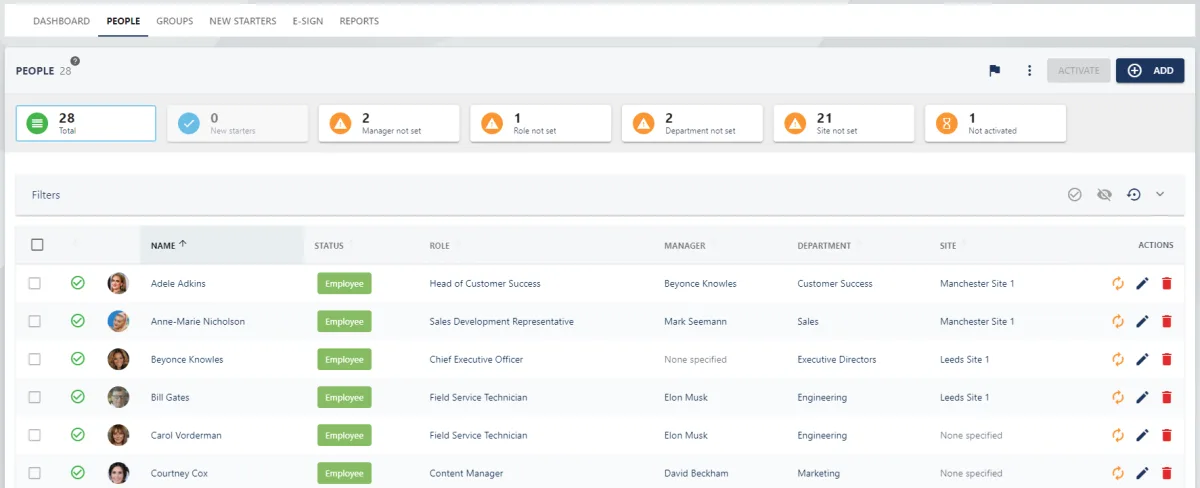
Navigate to the People area of the platform in MANAGE mode.
🚀 If you are using our new menu feature, hover over the People section of the side-bar, then navigate to:
Manage ➡️ People
Select the People title and proceed with step two.
Step Two
Select the name of the employee from the list to open their profile in an editable state.
Step Three
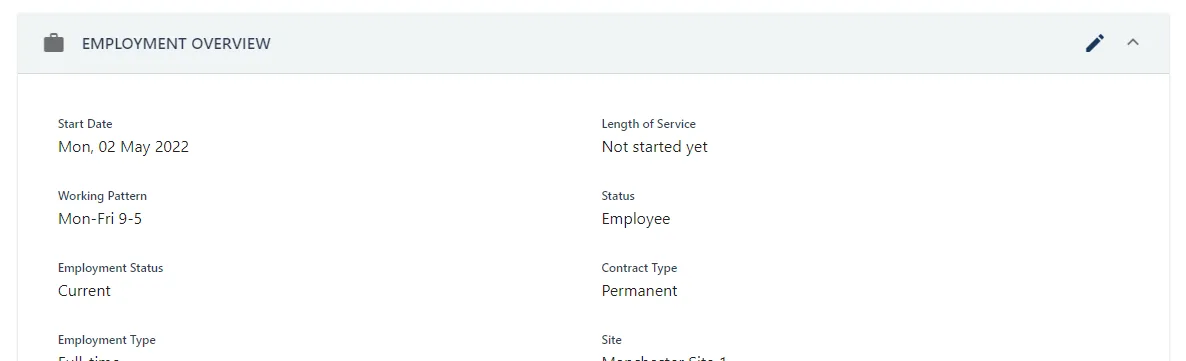
Within the DETAILS section, click on the pencil next to EMPLOYMENT OVERVIEW section. This will open the UPDATE PERSON pull-out drawer to the right.
Step Four
Scroll to the Department field and select the name of the department from the drop-down menu.

Step Five
Click SAVE to confirm the changes made to the employee's department.