1.0 Get Initial Settings For One Login
Navigate to the Integrations section of ADP where you will see a list of all integrations for StaffCircle. Find OneLogin and click 'Add Integration' and then click 'Configure'.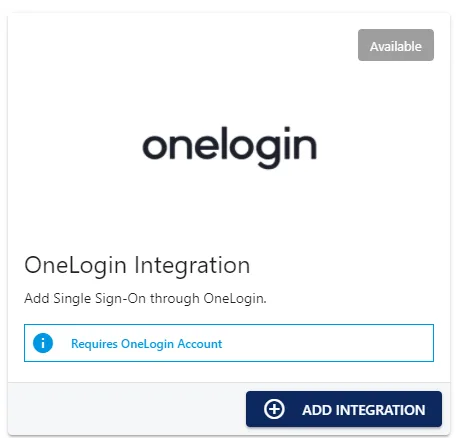
You will be greeted with the following page. Please copy both the redirect URI and the Login Url.
2.0 Intall StaffCircle Application To OneLogin
Navigate to your company OneLogin account, and navigate to the Admin section and follow the Applications link. 
From this link click the Add App Button and then search for the StaffCircle App.


Click the StaffCircle App and click save.

Click the configuration section and paste the Login URL and Redirect URI you copied in section 1.0 and save the configuration.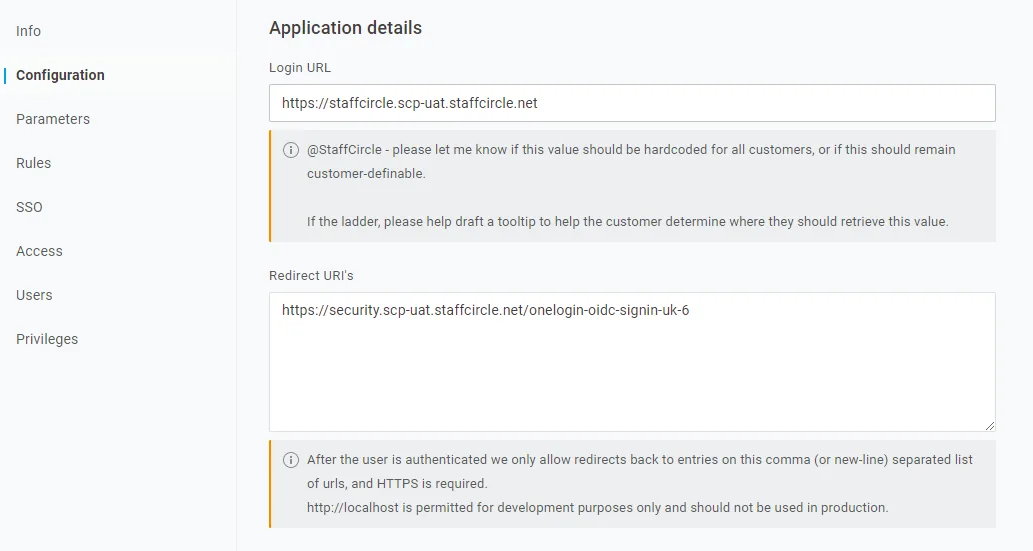
Click the SSO link on the left to get OneLogin Details required to enter in the configuration section of staffcircle.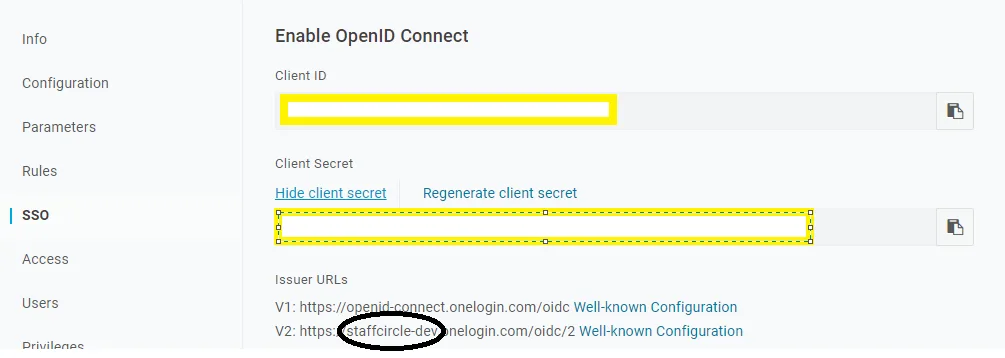
You must now copy the Client Id, Client Secret and Tenant Name from the V2 Issuer URL endpoint and put this information in the Configuration section back inside the StaffCircle OneLogin integration page.
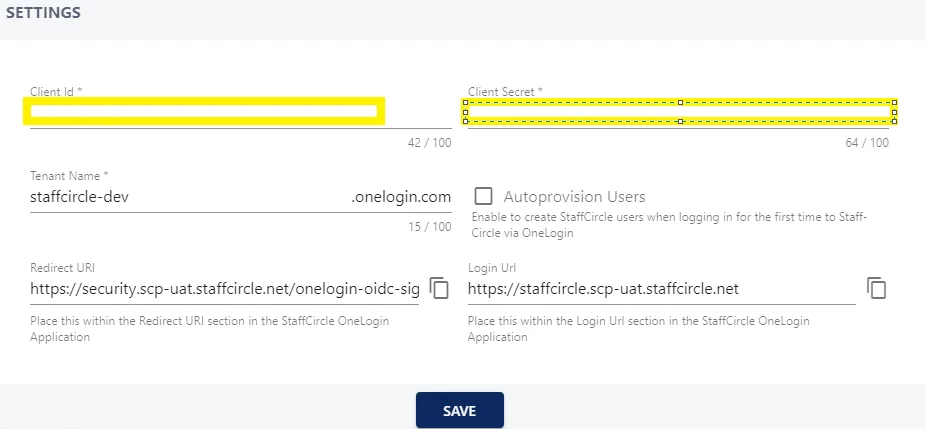
You have now successfully linked your Staffcircle account to One Login.
3.0 Adding Users To Your Application
Once your accounts are linked you can add users to your StaffCircle application within OneLogin.
You can add users to Staffcircle inside of OneLogin in one of two ways.
3.1 Add Users Individually
From the users section click an individual user and select the applications section of their profile and click the '+' symbol in the applications section.

Select the application from the drop down list and click 'continue'.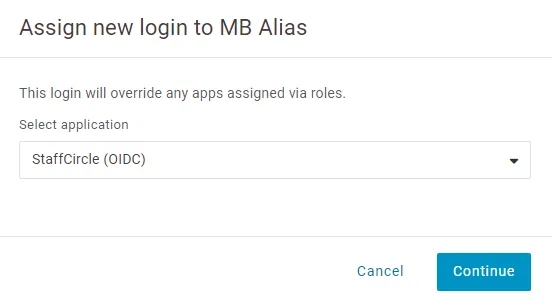
Check the details dipsplayed on the following summary page are correct and click 'Save'.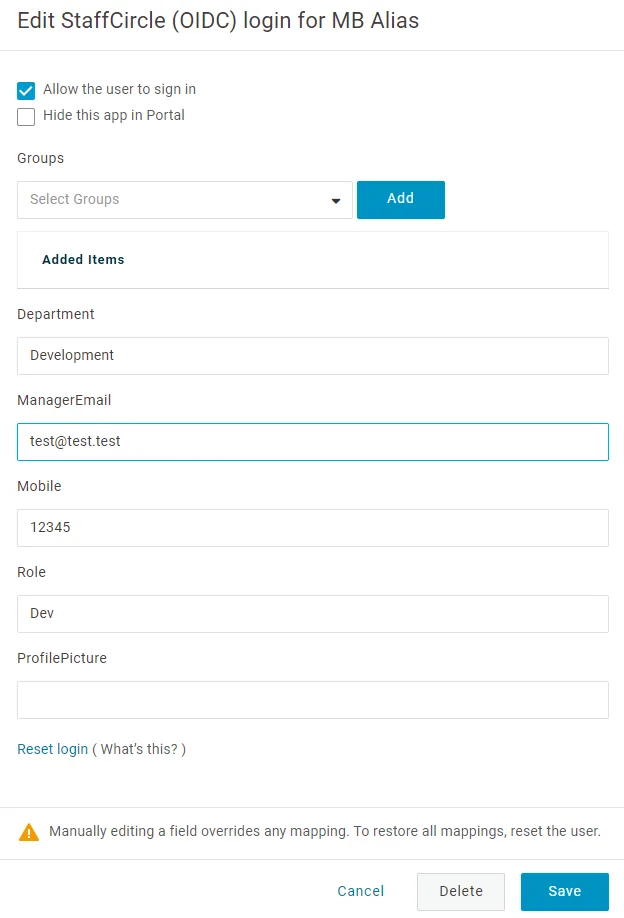
3.2 Add Application To Role
You may add the application to a specific Role. First either create a new role in OneLogin or if you prefer use an existing Role.
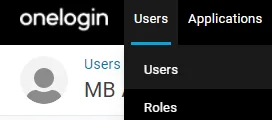
Select to Add the StaffCircle App to the role and click the green tick.
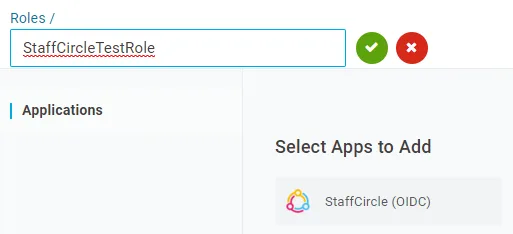
You may now assign this role to any users you wish to access the StaffCircle application.
4.0 Autoprovisioning
Inside the configuration screen of the OneLogin StaffCircle integration you will find a tick-box that allows Autoprovisioning.

If Autoprovision is enabled then any user that signs into StaffCircle with a from a OneLogin account attached to your OneLogin tenant will automatically be created in the StaffCircle directory and be logged in.
If Autoprovision is turned off *you must* first create a user within StaffCircle that uses an email address matching the email address stored in OneLogin, before a user may login to the StaffCircle platform.
5.0 Known Issues & Workarounds
5.1 Job Role Not Automatically Set
Job role is not currently defaulted in the data mapping between OneLogin and StaffCircle.
To ensure this is mapped for your users if you go to the Parameters section of your StaffCircle OIDC application. And click the 'Role' Field.
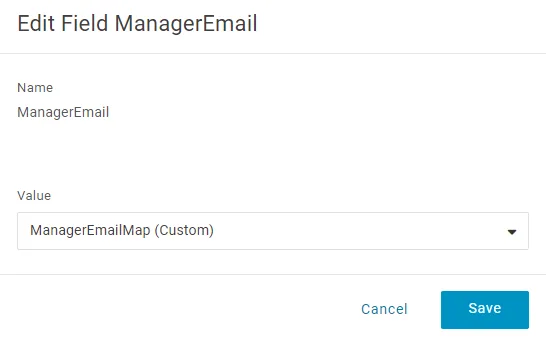
In the Edit screen select 'Title', and click save.
 5.2 Manager Is Not Mapped
OneLogin currently has an outstanding bug where manager information intermittently fails to send. They have provided the following work around.
Navigate to custom user fields.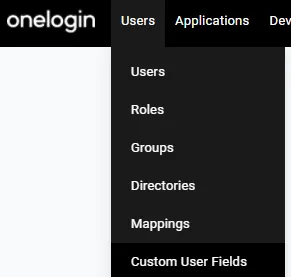
Create a new Custom Field.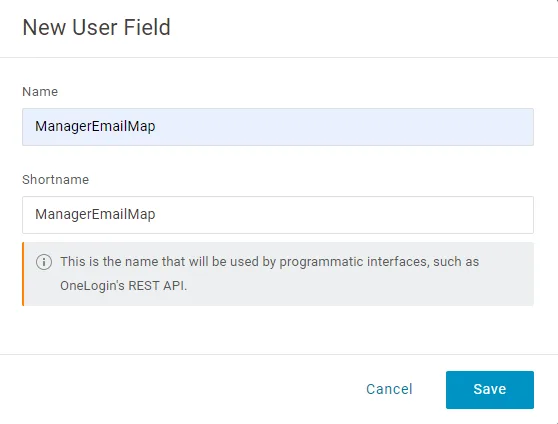
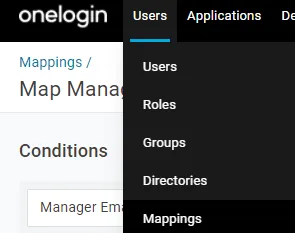
Navigate to mappings.
Create a new mapping with the following settings.
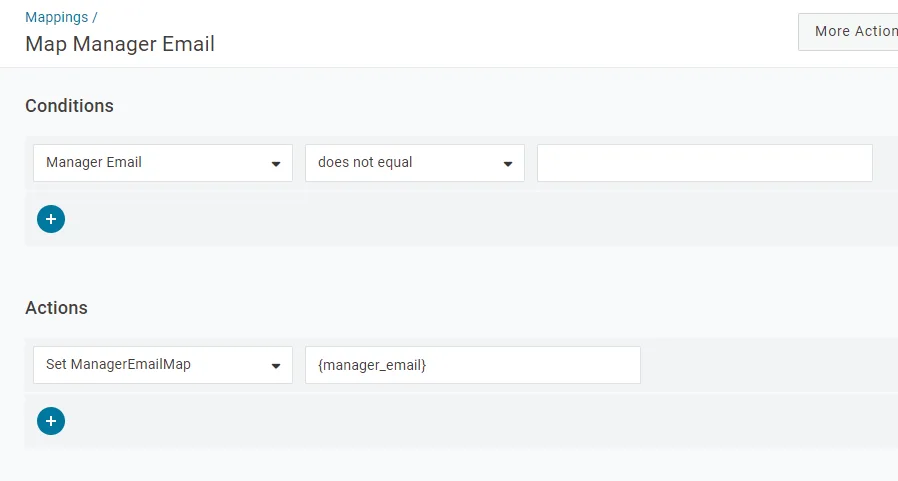
Once the mapping is created run the custom mapping and then navigate to the StaffCircle(OIDC) parameters tab.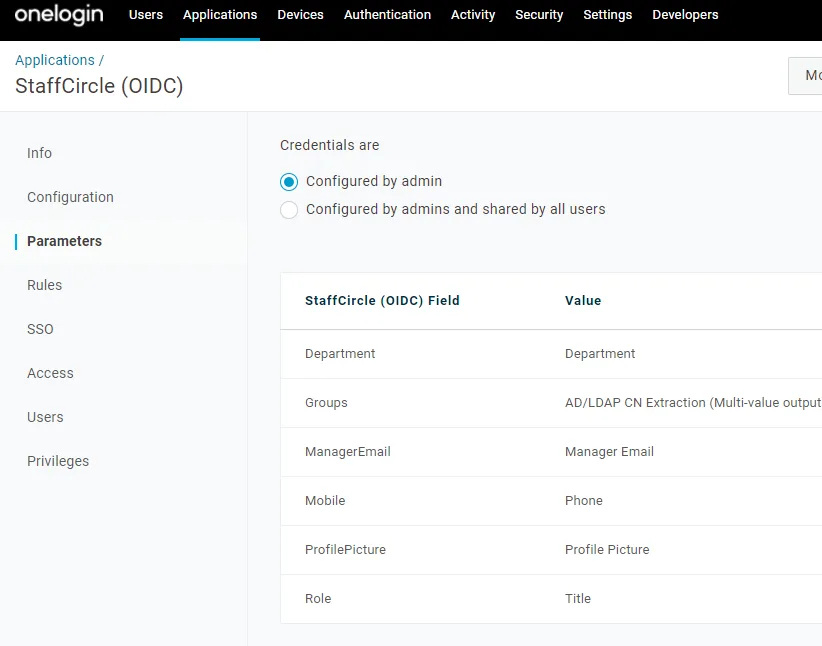
Click the ManagerEmail parameter and link your new custom field.
Further updates will be available as OneLogin give us updates as to their progress around this issue.