Linkedin Learning Connector
Step 1:
Log into your StaffCircle account and type "Connectors" in the Quick Search or Navigate to "Integrations" - click on "LMS Connectors" menu item as below. (you must be a StaffCircle admin)
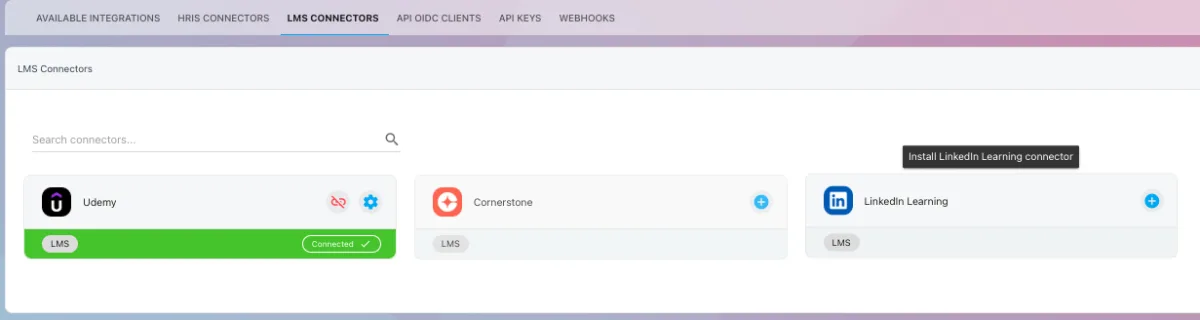
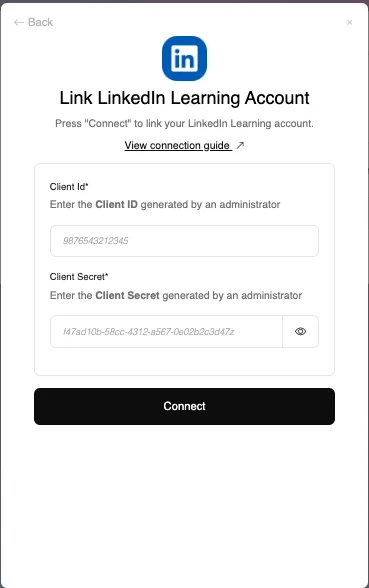
Then under the linkedin connector click on the + button. You will see the dialogue box below appear.
Step 2:
Log into your Linkedin Learning account (you must be an admin)
Navigate to Integrate
Hover over Me in the top-right corner, then select Integrate.
Select Integrations from the dropdown menu.

Step 3:
Navigate to Select the Access content and reports via API tab.
Select the Access content and reports via API tab on the left hand menu.
Step 4:
Create a New App
Expand the Generate LinkedIn Learning REST API Application section. Click Add application. Complete the form, explaining how the integration will be used. Select Content for the Choose keys option

Step 5:
Note the Client ID and Secret
Click Next. Once you have saved the application you will be able to copy and paste the Client ID and Client secret.
Step 6;
Connect Linkedin Learning Account
In the connector dialogue box shown in Step 1 enter the Client ID and Client Secret from the previous step.
Click Connect.