Create & Send E-Sign Envelope
Before following these steps, you should have E-Sign activated and tagged the documents to sign
What is an e-sign envelope? An envelope is the wrapper around a set of documents. Like an email, you can attach one or several documents to the envelope and send this to one or a few signers and reviewers. You’re provided with 10 free envelopes when you activate e-sign.
Create Envelope
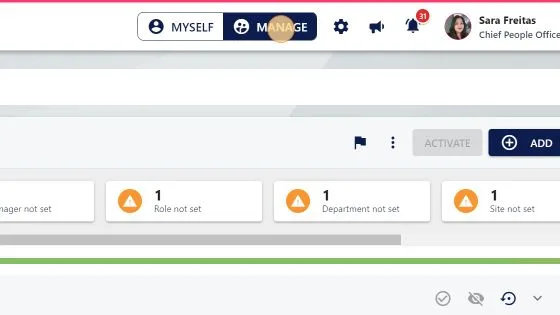
1. Click "MANAGE"
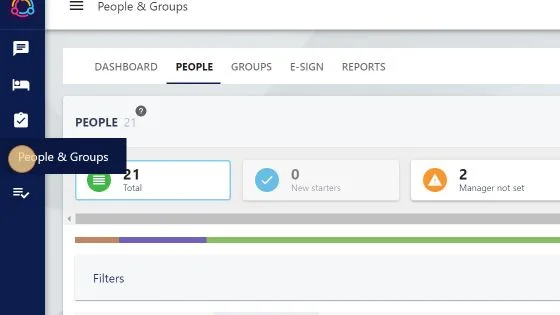
2. Click "People & Groups"
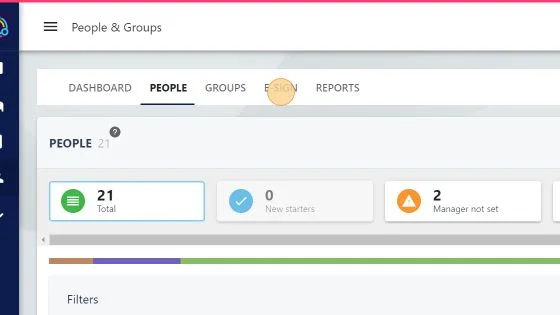
3. Click "E-SIGN"
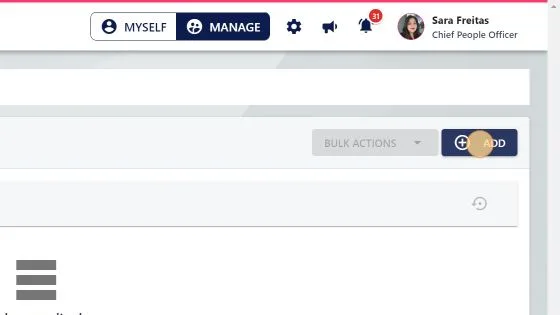
4. Click "ADD"
5. Type in an "Envelope title" - this will display in the email sent to the signers & reviewers
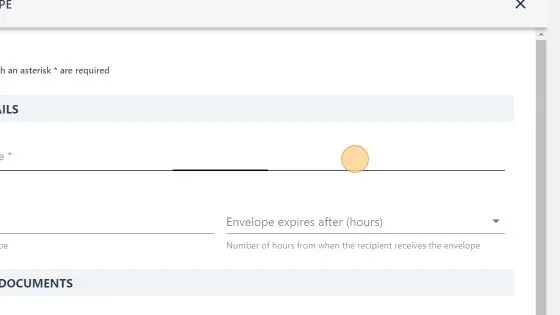
6. Type in an "Envelope tag"
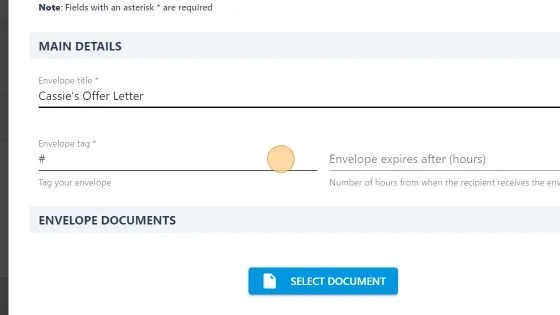
7. Set the expiry on how long they have to sign the documents when the e-sign gets sent
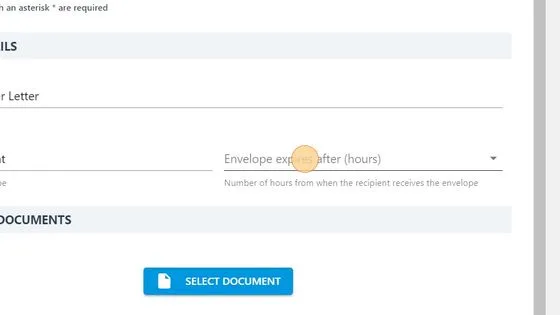
Add Documents to Envelope
8. Click "SELECT DOCUMENT"
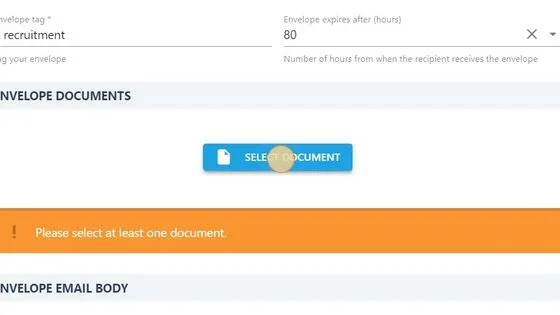
9. To upload the tag prepared documents, click the more actions icon
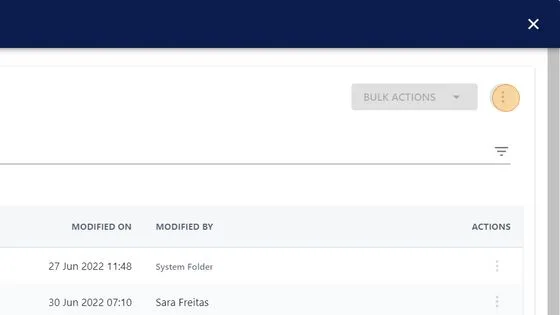
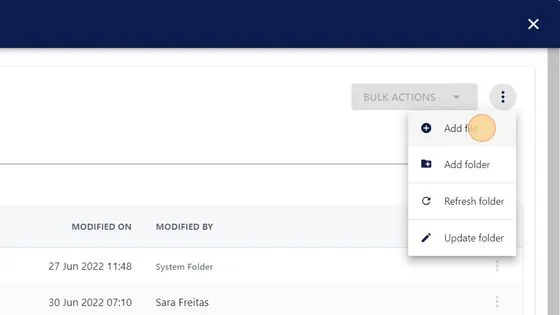
10. Click "Add file"
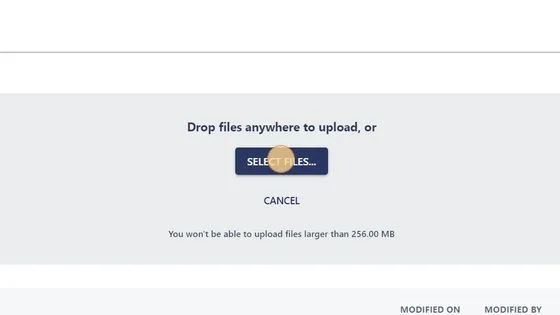
11. Click "SELECT FILES..." A pop up window will show and you can select multiple documents to upload
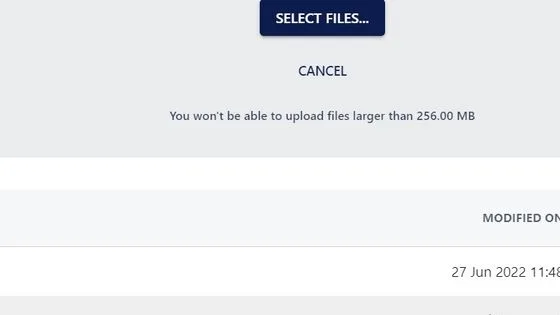
Alert! All uploaded files go through a virus scan. When files show in red font it's finishing up the virus scan. Refresh the folder to be able to select documents that are showing in red font.
12. To refresh the folder, click the more actions icon
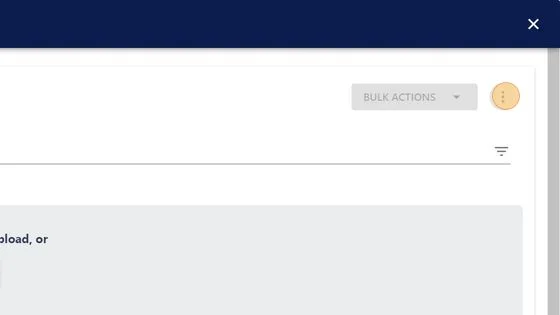
13. Click "Refresh folder"
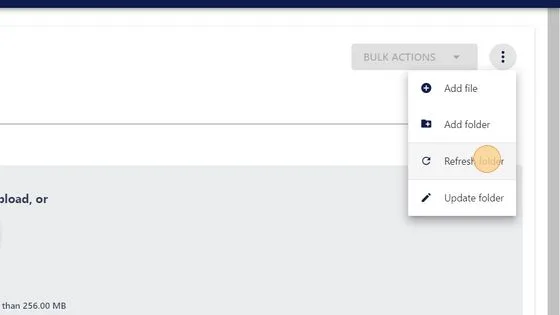
14. Click the title of the document to add it to the envelope
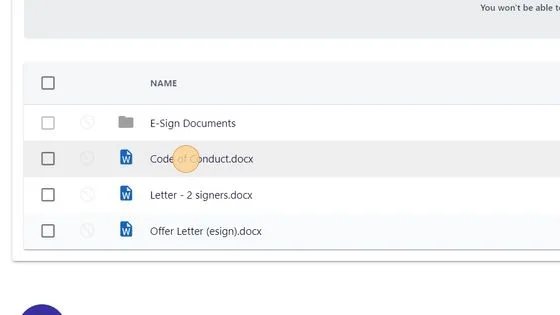
To add more documents to the envelope, repeat steps 8-14
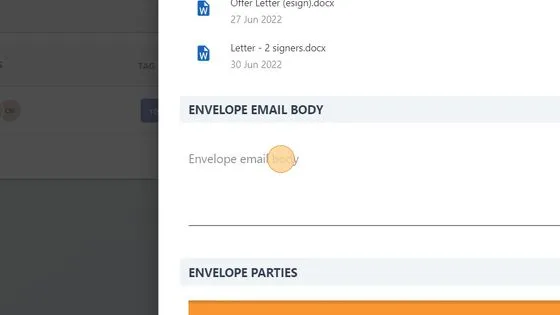
15. Type in a message to the signers in the "Envelope email body" field.
Add Signers
You can send documents to people within your StaffCircle internal directory, and you can also send documents to email addresses outside the directory using the 'external' option
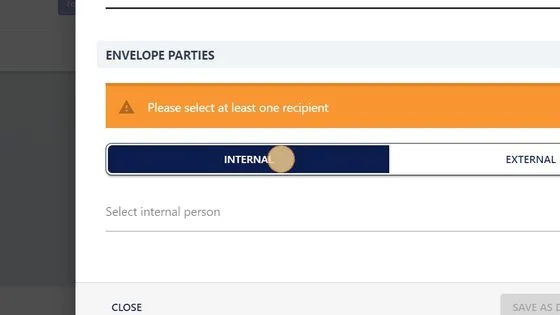
16. Add an internal signer by clicking here
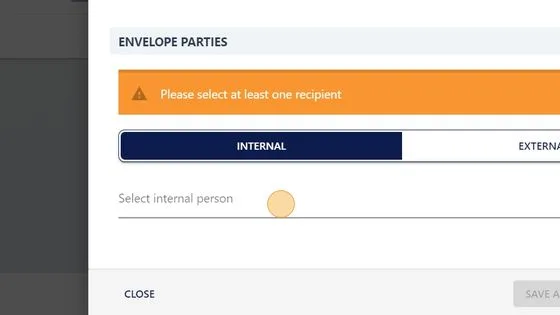
17. Click the dropdown and select the employee
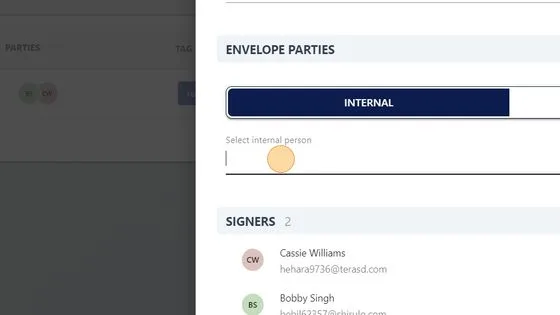
Multiple Signers
Tip! Want multiple people to sign the document? Repeat step 17.
Alert! If you have multiple signers, make sure all your documents have the same amount of signature tags.
When you have multiple signers, it will email the first signer, when first signer has finished with the documents it will then send the email to the next signer.
Add Reviewers
Tip! Reviewers get a copy of the signed documents by email. Add reviewers if you don't want to give them access to all the e-sign permissions in StaffCircle.
18. To add a reviewer, select whether they are in the internal directory and pick their name from the dropdown, or select 'external' tab and type in their name & email address then click "Add"
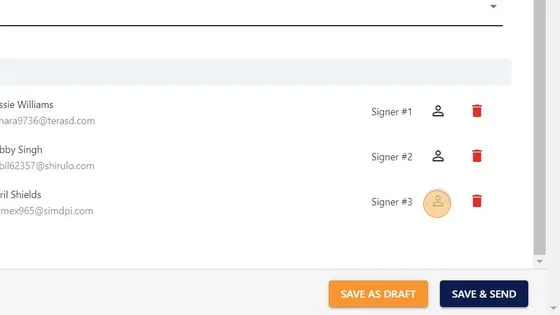
19. Click "person outline" icon to switch them from signer to reviewer
Save as Draft
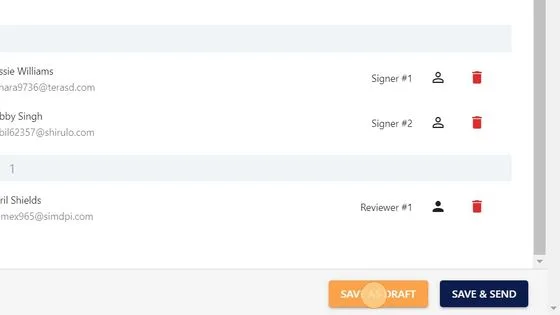
20. Click "SAVE AS DRAFT" if you don't want to send the email yet
Save & Send Envelope
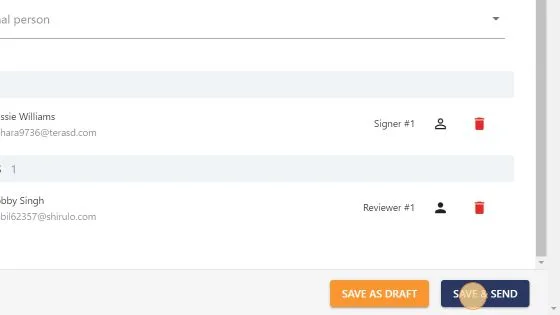
21. Click "SAVE & SEND" to send the email for the documents to be signed
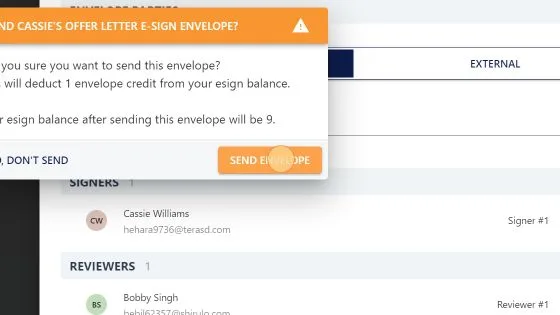
22. Click "SEND ENVELOPE" It will let you know how many envelopes you have left.
Add Envelopes
When you use the 10 free envelopes provided once you’ve set up the E-Sign integration, you can purchase additional envelopes.
Go into "Settings" (top right) and select "Billing & Usage" left menu).
You’ll see a new section has been added called “E-SIGN ENVELOPES”, this will give you a snapshot of how many envelopes you’ve currently got, how many you’ve sent, how many have been signed and how many have expired.
To purchase more envelopes, click “BUY MORE ENVELOPES” and you’ll be able to select from four amounts of envelopes.
As soon as you confirm your envelope purchase, your available envelopes will increase, and we’ll send an email to our finance department letting them know to add the cost to your StaffCircle account.
Learn this in the University
Step-by-step training lessons for the roles this article applies to.
