Step One
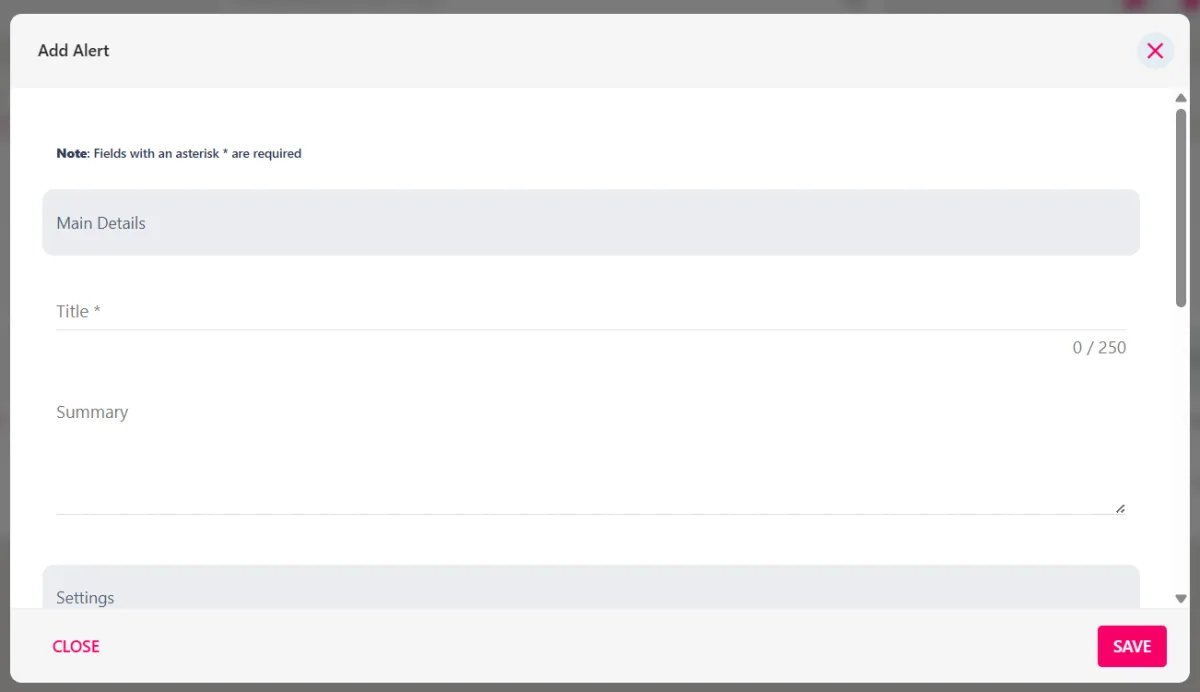
Hover over the Comms section of the sidebar, then navigate to: Manage ➡️ Alerts. Select the ➕ next to Alerts to open the Add Alert pop-up.
Step Two
Provide a short title to your alert, then populate the summary field to provide additional context to the alert.
Step Three
Select the priority for the alert, this will determine the colour of the banner the employee will be able to see on the feed (example below).

Step Four
Then use the notification toggle switches to decide how you would like the employees to be notified. A preview of your notification will be displayed in the push notification and SMS notification sections.

Step Five
Choose who should be notified of this alert under the I'LL CHOOSE button, start typing with '@' and all individuals, sites and departments will appear for you to choose from. Alternatively, you can use the EVERYONE button to send the alert to everyone within the business.

Please note this will go to every active person in your organisation as soon as you press the SAVE button.