Make a comment against your objective
In this lesson, we will look at how to use the conversation area of the objective progress drawer to make a comment against an objective which has been assigned to you. The conversation feature allows the Reviewee (you) and the Reviewer to converse regarding the objective and is an ideal way of asking for help or clarification with an objective.
Unlike the progress description area which is populated when updating the progress of your objective, the conversation area is not limited to a word count and can be used to upload attachments and photos (if this has been configured).
When a comment has been made my yourself, your manager will receive a notification. When a comment has been made by your manager, you will receive a notification.
Step One
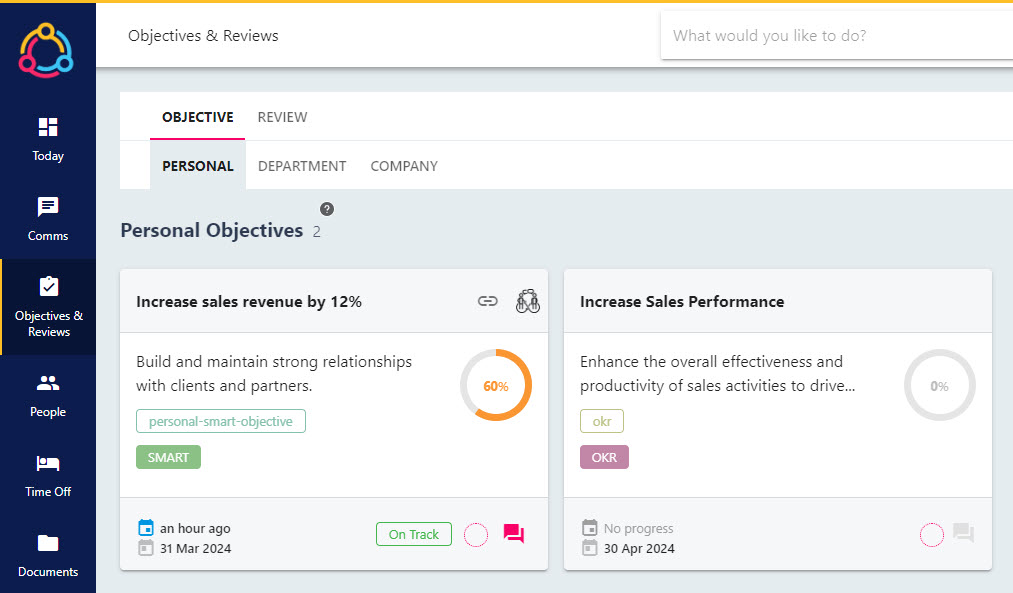
Hover over the Objectives and Reviews section of the side-bar, then navigate to: Objectives & Reviews ➡️Objectives. Select the Objectives title from the sub-menu to view your open personal objectives.
Step Two
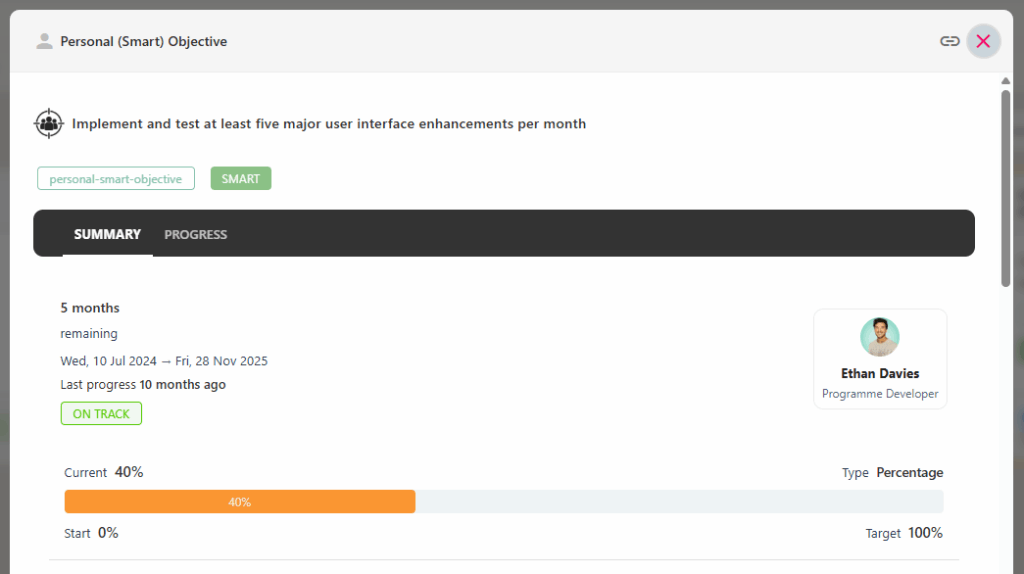
Select tile associated with the objective you wish you make a comment against. This will open up objective’s progress drawer to the right-hand side of the screen and is the same drawer used to update the progress of the objective.
Personal OKRs
You can make comments against each individual key result rather than the OKR itself. Toggle through the individual key results using the arrows to find the key result you wish to make a comment against.
Step Three
Scroll to the bottom of the progress drawer to the ‘Objective Conversation’ section. This is the area where you can view any comments made against the objective previously, and add new comments.
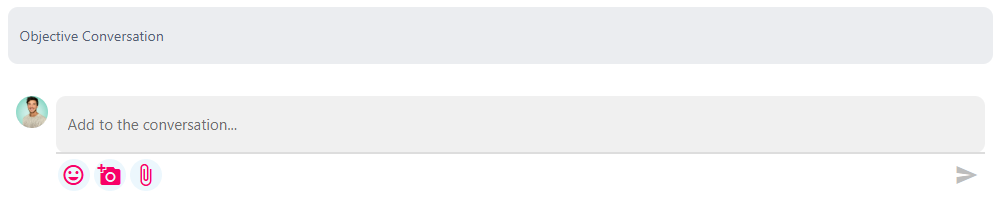
If this section does not display then the conversation feature has not been enable for the objective – we would recommend contacting your system administrator in this instance.
Step Four
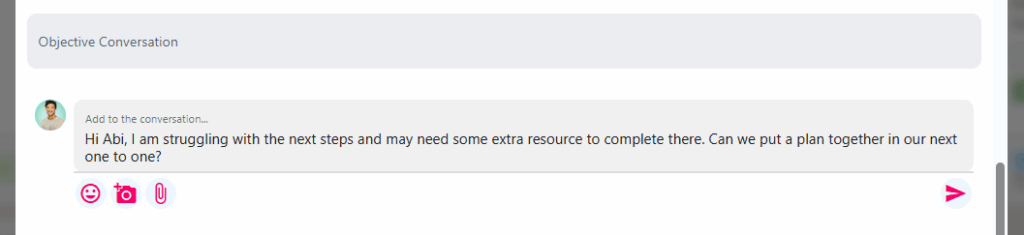
Populate your comment in the text box and click the paper aeroplane icon to submit the comment. Submitting a comment notifies your manager (or objective reviewer) so that they are prompted to view this in the platform.
Step Five
The comment you have just made will display below the text box in the progress drawer with a time/date stamp.
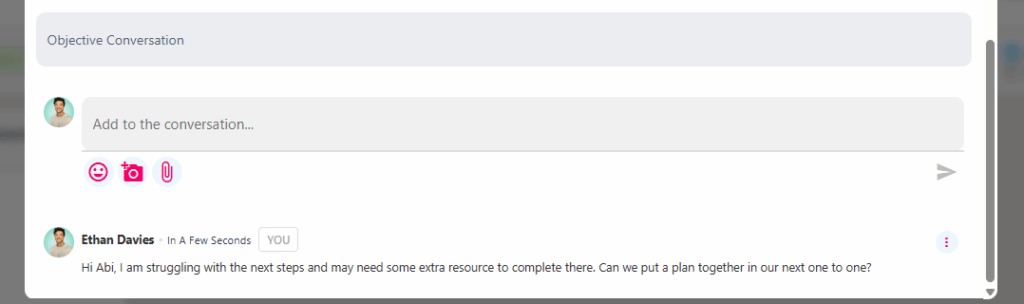
To update or delete a comment you have made, click on the three dots to the right of the comment.
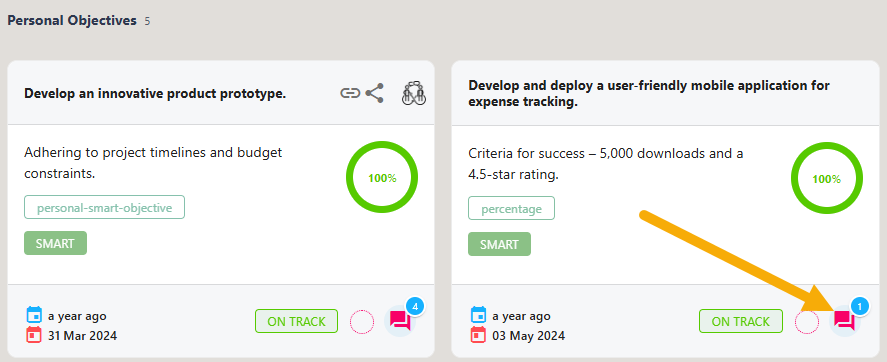
You can access the Conversation area of the objective quickly by clicking on the speech icon in the bottom right-hand corner of the objective’s tile.