Make a comment against an employee’s objective
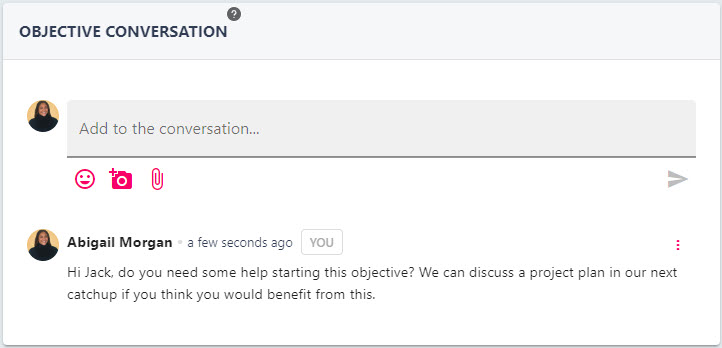
The conversation feature can be utilised by the assigned employee and the objective’s reviewer to make comments against the employee’s personal objective. Unlike the progress updates section, the conversation area has a significantly higher word count, and allows the commenter to upload photos, file attachments, and emojis.
Step One
Hover over the Objectives and Reviews section of the side-bar, then navigate to: Manage ➡️ Objectives. Select the Objectives title to open the Objective Manager page.
Step Two
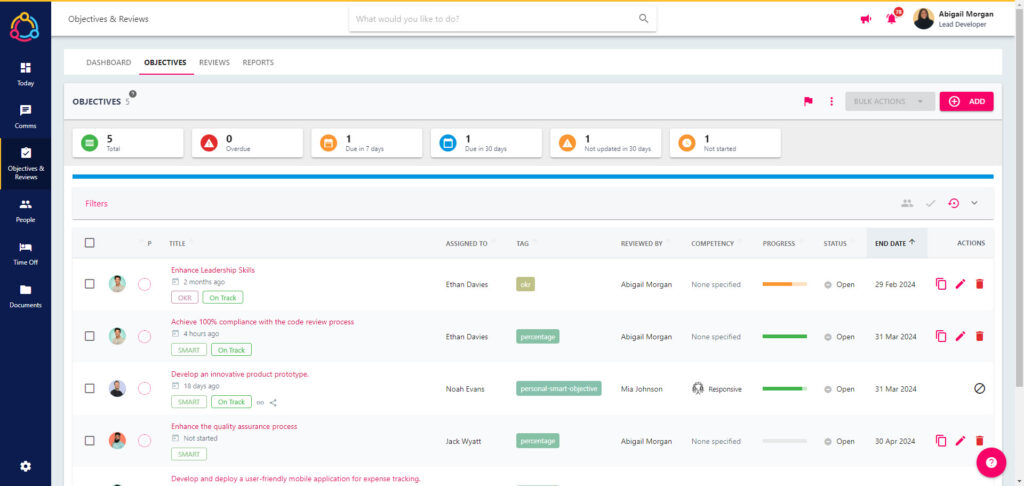
The Objective Manager page will display a list of open objectives associated with your direct reports and employee’s in your downline. For more information on the features included on this page, and how you can utilise these to best manage employee objectives, please refer to this lesson.
Step Three
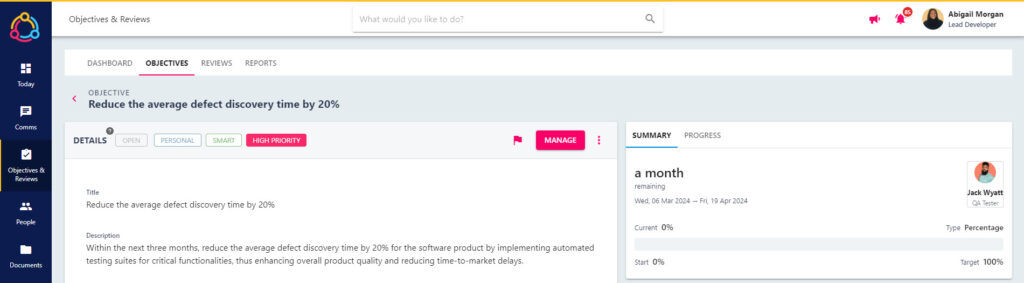
Click on the Title of the objective to open the Objective details page.
Step Four
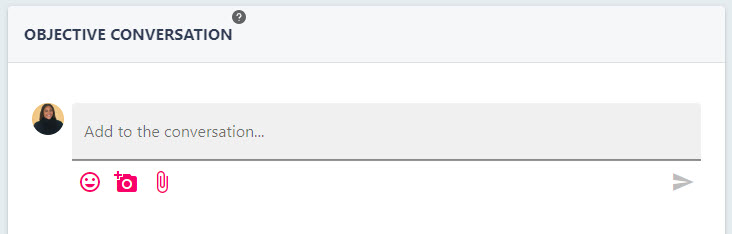
In the bottom right-hand corner of the Objective details page, you will see the OBJECTIVE CONVERSATION area. If this is area shows as disabled then the conversation feature has not been enabled for this objective type.
This area will display any comments made against the objective previously.
Step Five
Populate your comment in the text box and click the paper aeroplane icon to submit the comment. The comment will now display in the objective conversation area and a notification will be sent to the person assigned to the objective.
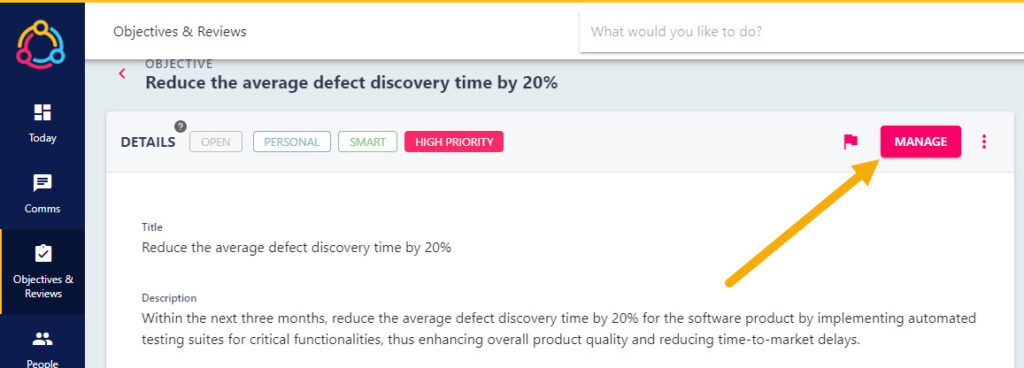
Comments can be made against the employee’s objective by selecting the MANAGE button on the objective details page and following the instructions included in this guide.