Uploading documents to an employee’s personal folder
You can upload documents to an employee’s personal folder on the employee’s behalf. The employee’s personal folder can only be accessed by you (the employee’s manager), the employee themselves, and system administrators.
Step One
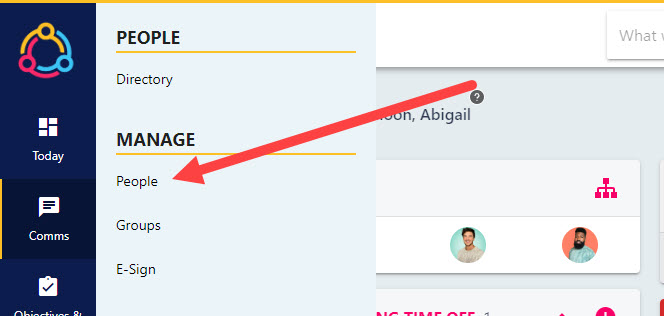
Hover over the People section of the side-bar, then navigate to: Manage ➡️People. Select the People heading to view a list of your direct reports, however if you are a system administrator you will have visibility of every employee in the platform.
Step Two
Select the name of the employee will open their profile in an editable state and is not to be confused with the people directory. You can use the filters on the page to find specific employees.
Step Three
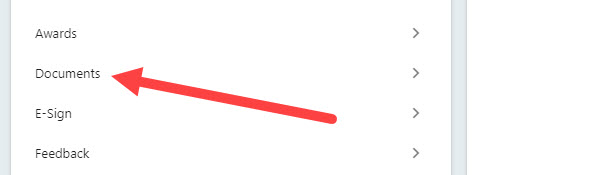
Select the ‘Documents’ tab to the left-hand side, this will open the employee’s personal document folder.
Step Four
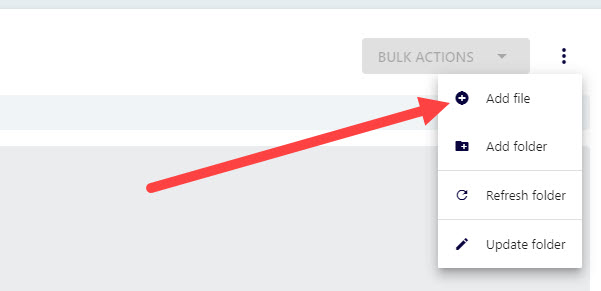
Click on the three dots to the left-hand side of the screen, then select Add file from the drop-down menu.
Step Five
Click the ‘SELECT FILES’ button to select the document(s) from your device, this will automatically start uploading the document(s) to the employee’s personal folder.

Step Six
Once complete, the document will then appear in the grid at the bottom of the page. This completes the process.