Worksheet Builder
The worksheet builder allows for you to create digital forms.
These can either be created from scratch or cloned from an existing worksheet. To clone follow these instructions
From the Worksheet list press 
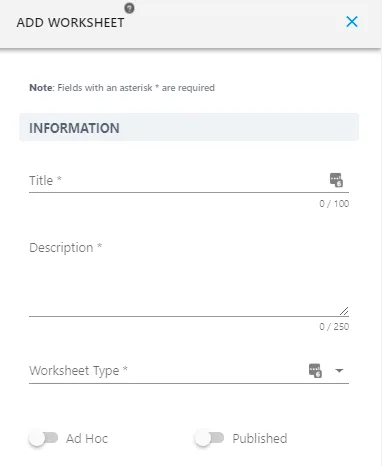
To start give the Worksheet a Title and Description and allocate it to a Worksheet Type
Decide if the Worksheet can be completed as an ad-hoc task and if you would like for the Worksheet to be published.
Press  your Worksheet will now appear in the worksheet list.
To go to the worksheet builder press  from the list view or
  from the detailed view then
Your screen will now include a section on the left where you add Sections and Fields along with the mobile preview to help you see what the user will see whilst you are building your form.
The worksheet can be broken in to sections, fields can then be added to the section. Whenever you are building a worksheet utilise the Mobile View on the left to check that how you have built it makes sense for the user to complete.
Sections
A Section is like a sub-header, a worksheet can have multiple sections. A section has to be created in order to add fields.
Sections help the user to navigate as a section can be expanded and collapsed and show progress.
To add a Section press  and then
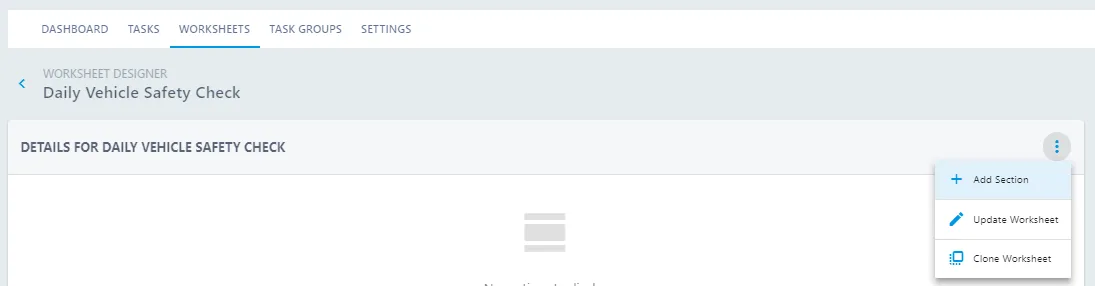
Give the Section a Title and Description and press 
You will see the section appear in the worksheet builder and how the section with the Title and Description appears in the mobile view.
The Section will have a range of actions now available to you  press
press  to add a field.
To edit a Section press 
Fields
A field is the area that a user needs to complete.
Enter the Title and Description.
Include helper text, this is available behind a blue hot spot to give the user a little more detail of what is required.  Toggle on or off
  the 'user must complete this field'
Select the Field Type from:
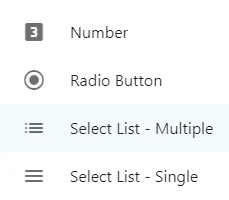
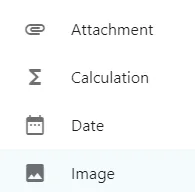
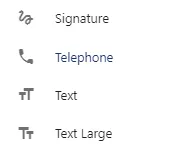

Further articles are available to describe the Field Types and the Calculations
Press 
Altering Layout
Moving sections and fields up and down within the form is easy.
To move a section up or down on the Worksheet press the relevant arrow within that section header 
To move a field grab and hold the field using  at the left hand side of the field.
 Drag the field to the desired location and let go
Mobile View
The mobile view is handy for you to check how the form will be viewed by your users.
You can complete the fields as you add them. Expand and collapse sections either by pressing on the number  at the side of the Section or by using the navigation buttons at the bottom.
The colour surrounding the section field demonstrates how the completion of the required fields in that section. 
