Task Group Settings View
This is the area where all Task Groups are listed. A Task Group is required so that Users that can be assigned particular tasks under that header. This task group will then appear in the Users Menu Bar.
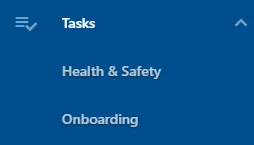
Along with assigning users that can access Task Groups, specific worksheets can be allocated to a Task Group for them to be assigned to a User or be completed on an adhoc basis.
Here you can search for a Task Group filtering by title
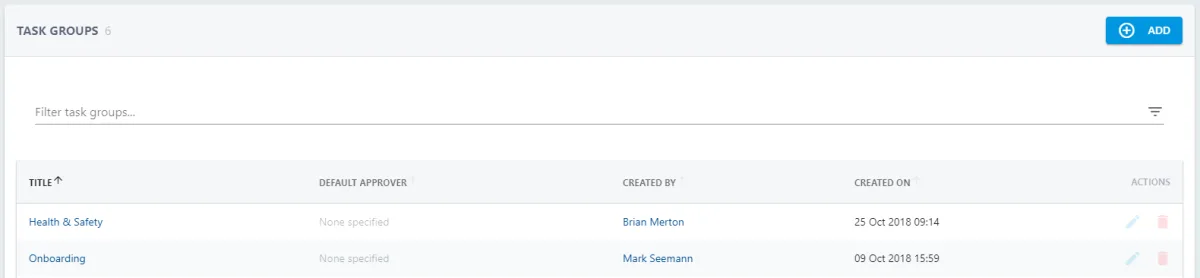
Select the Task Group to view the details.
Need to edit? Press  from the list view or
  from the detailed view for options.
To add People and/or Worksheets to a Task Group press  on that section.

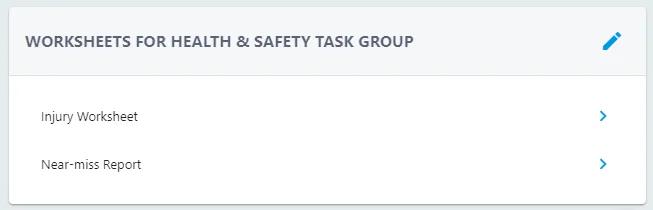
Use the toggle buttons  to activate relevant People and Worksheets for that Task Group.
Need to deactivate a User or Worksheet from a Task Group simply follow the process and toggle it off
