Completing your Tasks
To complete a task firstly go to the relevant Task Group in the menu bar.
 Select the relevant Task that you would like to view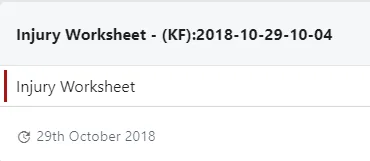
The Worksheet will open to allow for you to edit if in 'To Do' or 'In Progress' or to view if in 'Completed'
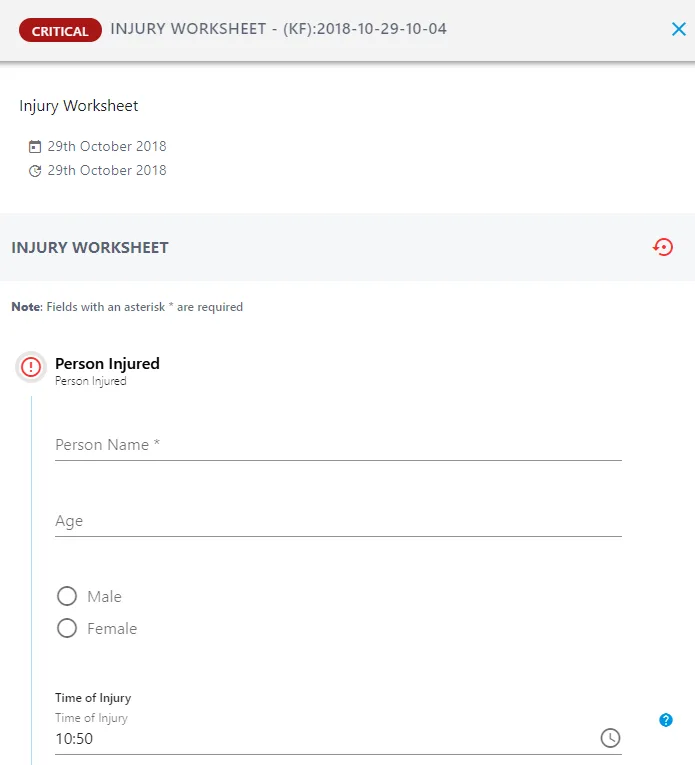
To navigate the worksheet press  or press on the section headers to open that section.
Make sure that you complete all Required Fields that are marked with an asterix*
Once all of the fields are complete don't forget to 
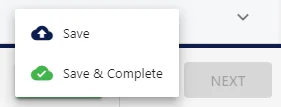
You will have two options:
- Save - Saves the information - Allows worksheet to remain editable - Does not complete the task.
- Save & Complete - Saves the information - Closes the worksheet to editing - Completes the task.
Adding a Signature? Press
on that field to save the image
Comments can be added to a Task at the bottom of the worksheet that you are completing. These comments can be viewed and replied to by any recipients that have been assigned to the task. If set, notifications will be sent to all recipients each time a comment is made.