Add or Edit a Task Group
This is the screen where you can add a new Task Group
 Give the Task Group a meaningful Title and description.
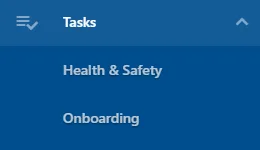
NB this Title will appear in the User Menu Bar.
If a Task Group has one main approver/recipient e.g. Health & Safety may only need to go to the H&S Manager, select a default approver/recipient. If this approver/recipient is fluid leave this blank.
Tasks require a priority to be set to them, set a default priority for Tasks within this Task Group.
Once happy with the group details press 
To add People and/or Worksheets to a Task Group firstly open the Task Group from the detail view. Press  on the People or Worksheets section
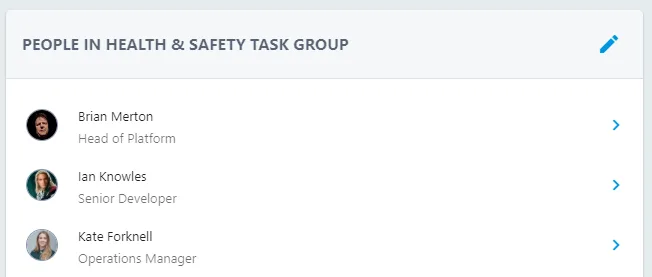
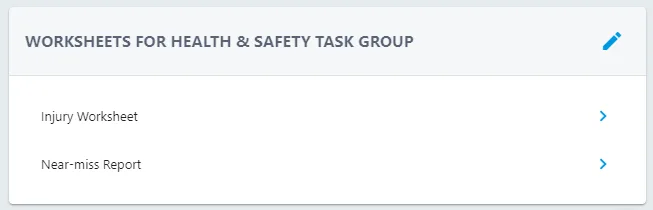
Use the toggle buttons  to activate relevant People and Worksheets for that Task Group.
Need to deactivate a User or Worksheet from a Task Group simply follow the process and toggle it off
