Knowledge base · People & Administration
Report: Not Logged In
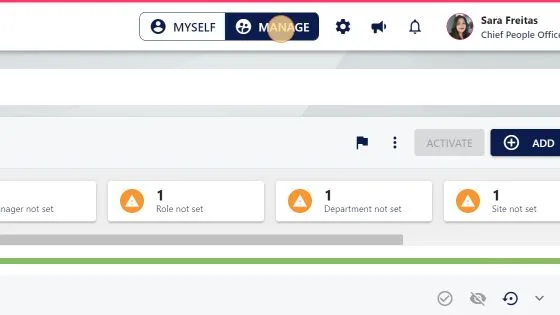
1. Click "MANAGE"
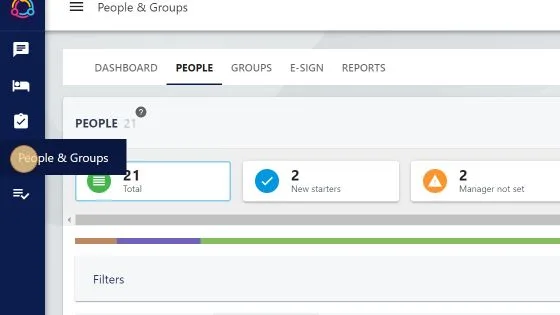
2. Click "People & Groups"
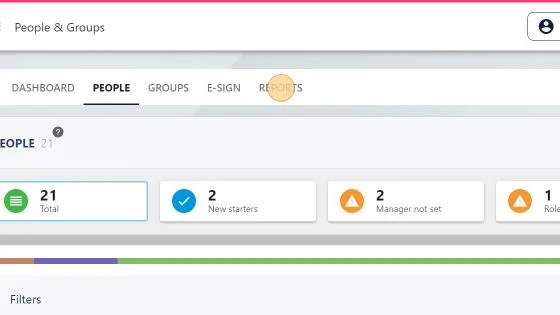
3. Click "REPORTS"
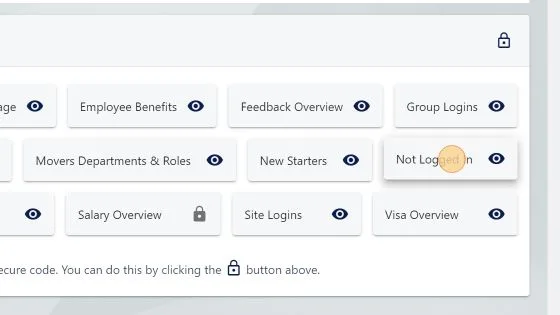
4. Click "Not Logged In"
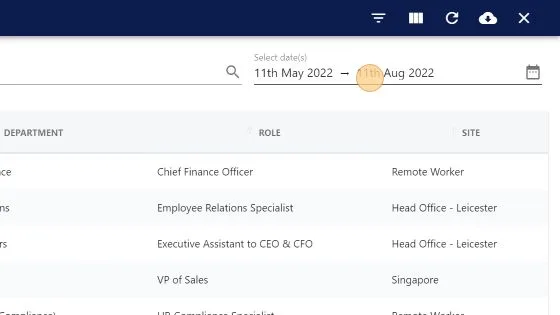
5. Change the date range to see who's not logged in during that time range. If you want to see all employees last logged in data then change the date to tomorrow's date.
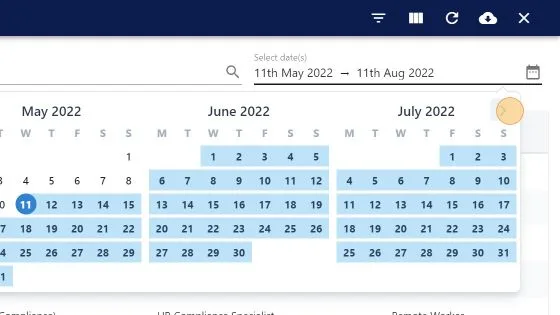
6. Click this icon to move between months
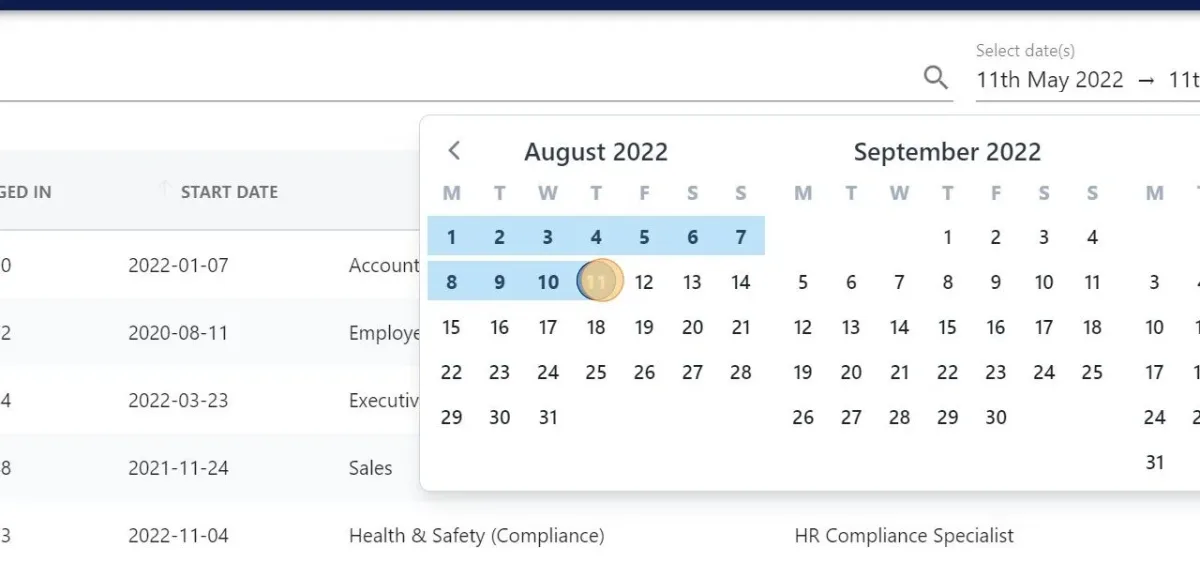
7. Your first click on a date selects the beginning of the date range, your second click is the end of the date range
8. "LAST LOGGED IN" column will tell you the date & time the employee last logged in
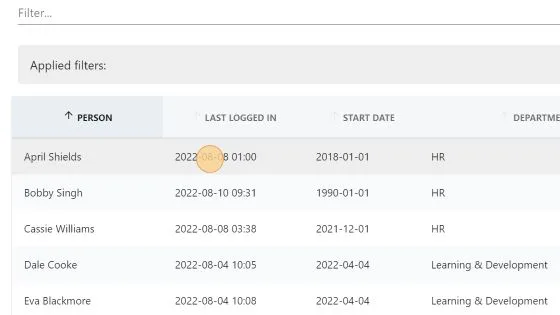
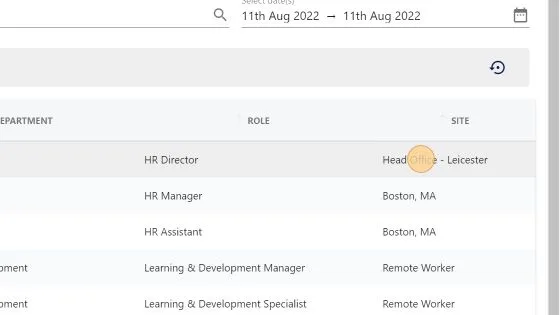
9. On the right hand side of the report is the site the employee is linked to