How do I de-activate or terminate a user or staff account?
When a user or employee leaves you are able to de-activate them in two different ways.
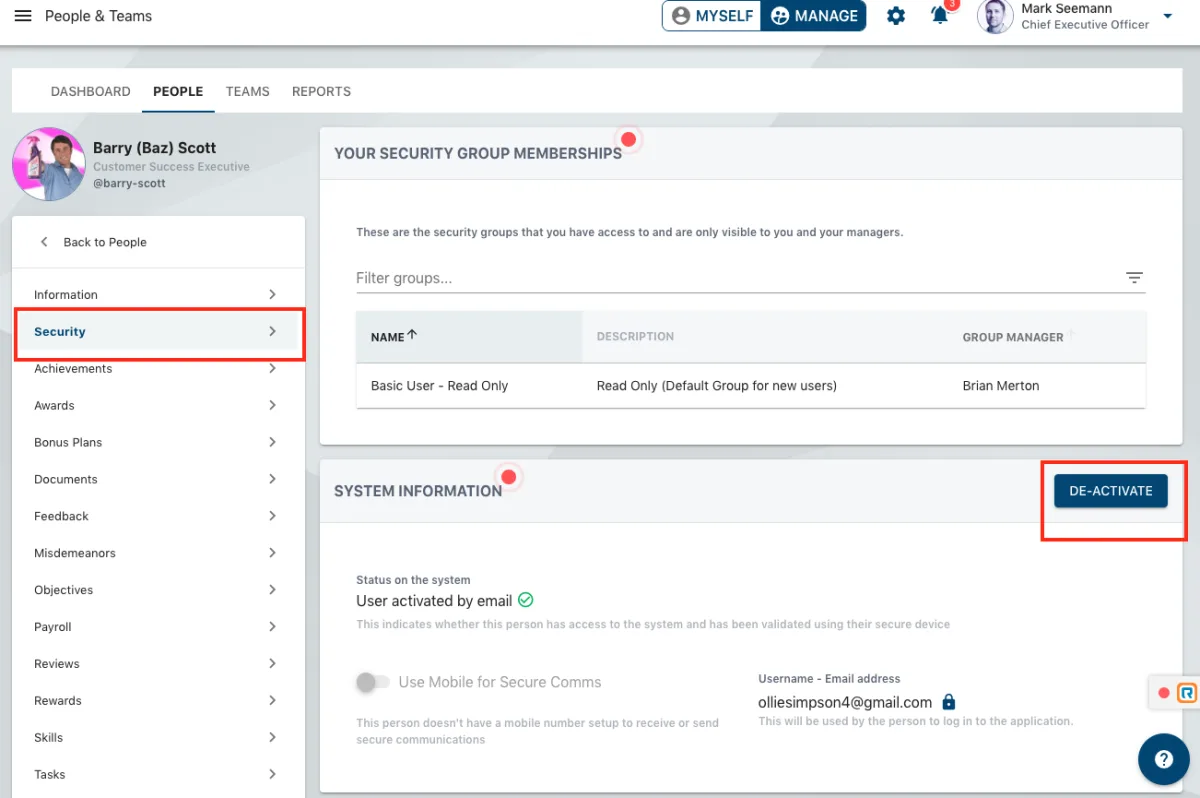
For Immediate De-activation:
1) You can go into the people list in manage mode and select the user account.
2) You select the Security section and under system information click on the red DE-ACTIVATE button
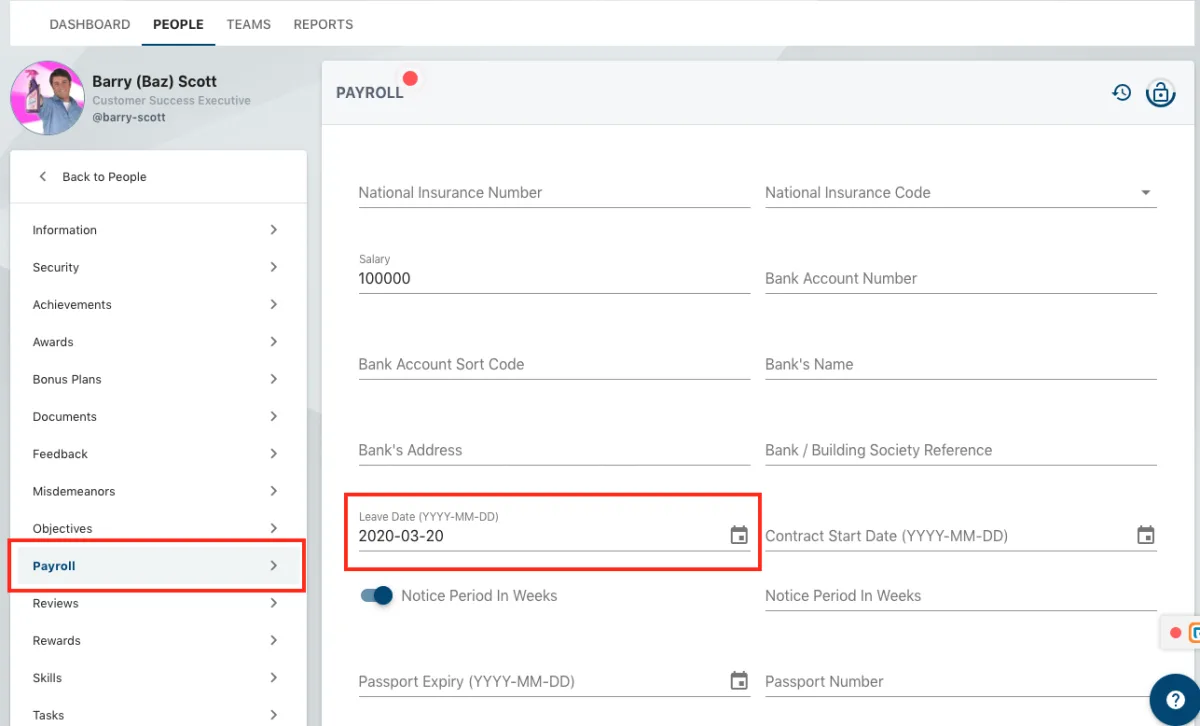
For Timed De-activation (useful if someone is going to leave on a certain date):
1) You can go into the people list in manage mode and select the user account.
2) Select Payroll from the menu, click on the padlock and then enter the authorisation code sent to you. Then when the data is displayed, enter a leave date in the format YYYY-MM-DD so if someone is leaving on the 20th March 2020 you would enter 2020-03-20.
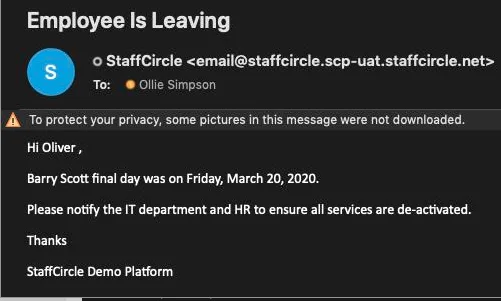
Once a leave date is entered in their profile, their manager will receive an email from the system as example below shows.
Note: Access to payroll requires super user privileges to be enabled for that user
