Knowledge base · People & Administration
How can I update a user's email address?
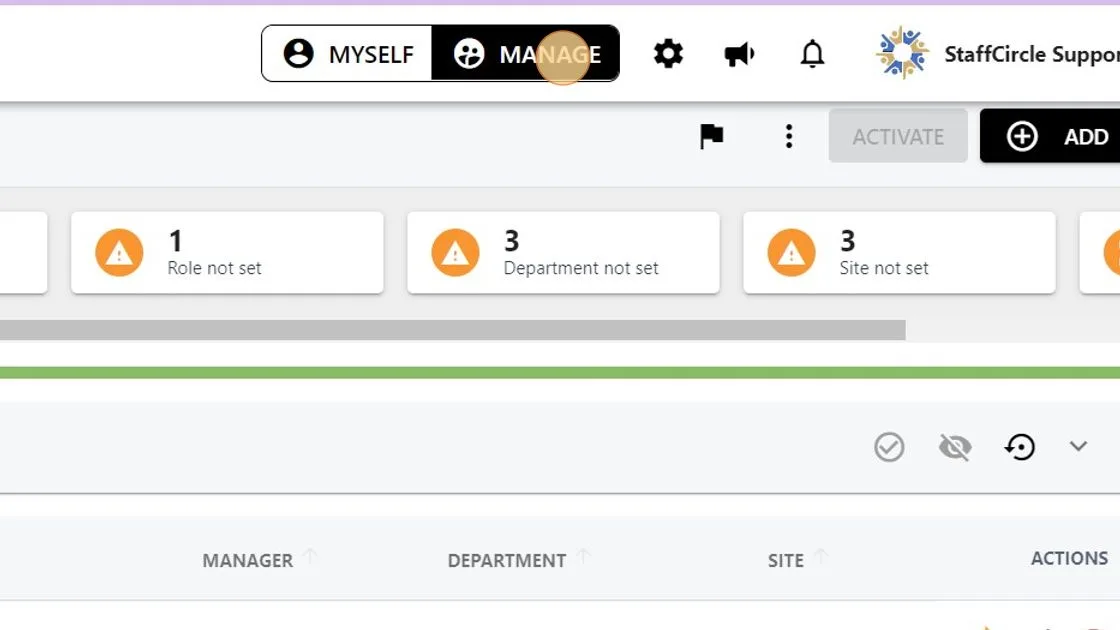
1. Navigate to the "People & Groups" tab on the right hand side. Ensure that you are completing the below steps in "MANAGE" mode.
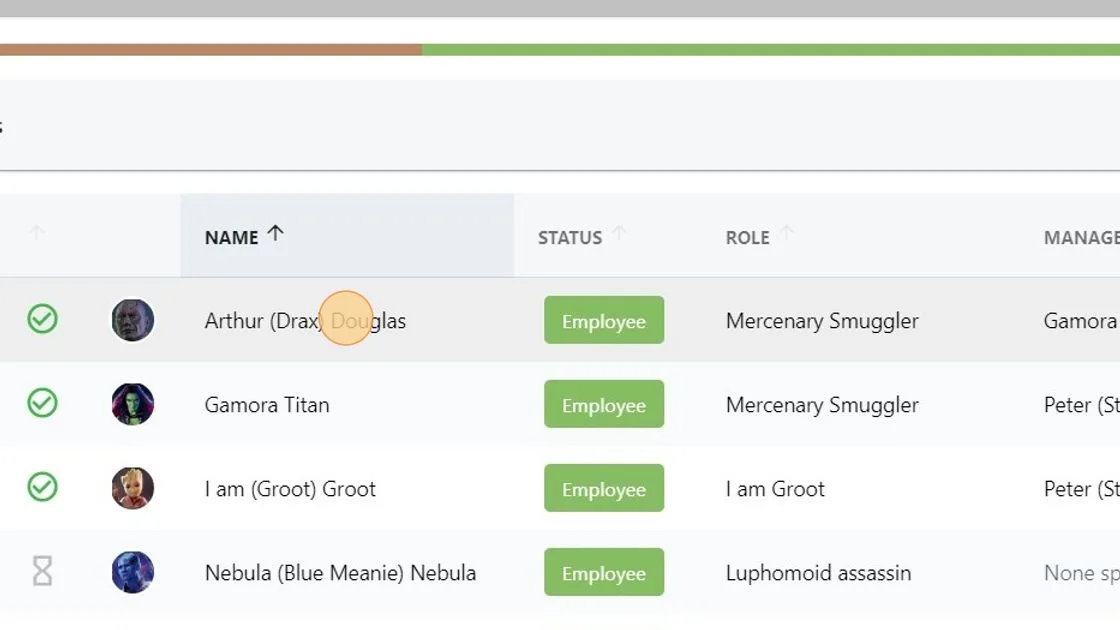
2. Click on the name of the employee within the People list.
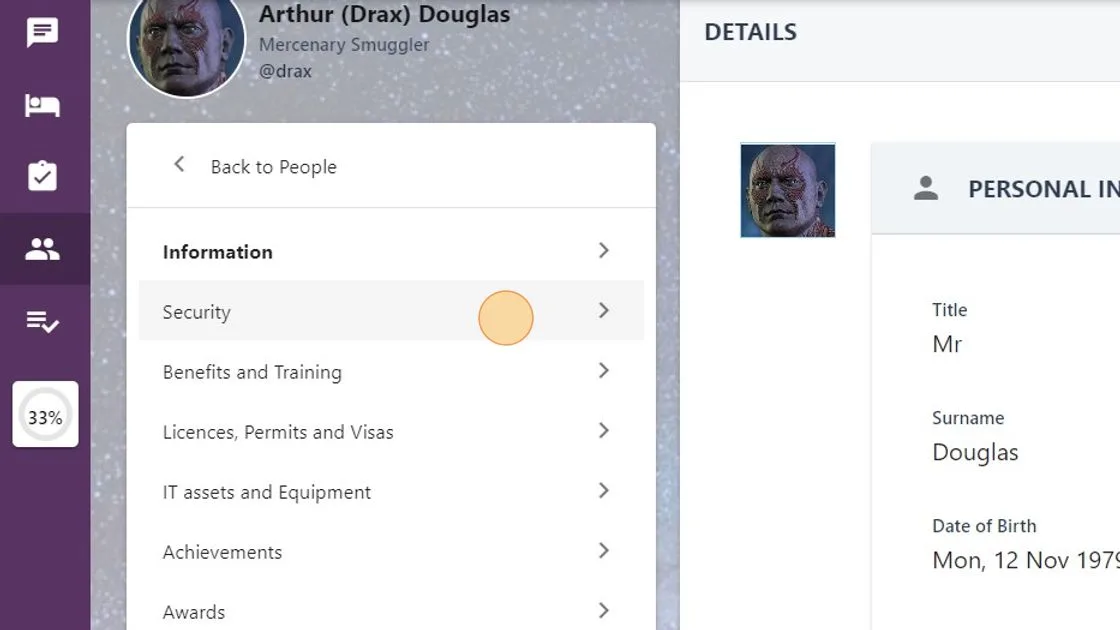
3. Open the "Security" tab on the left-hand side of the User's profile.
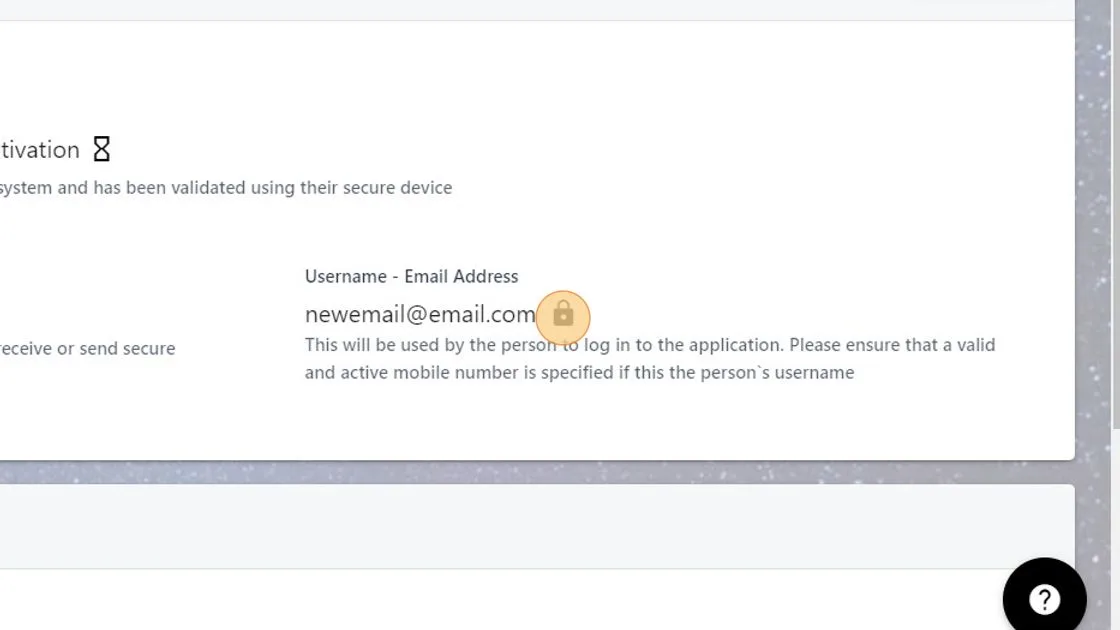
4. Click the padlock icon next to the User's email address
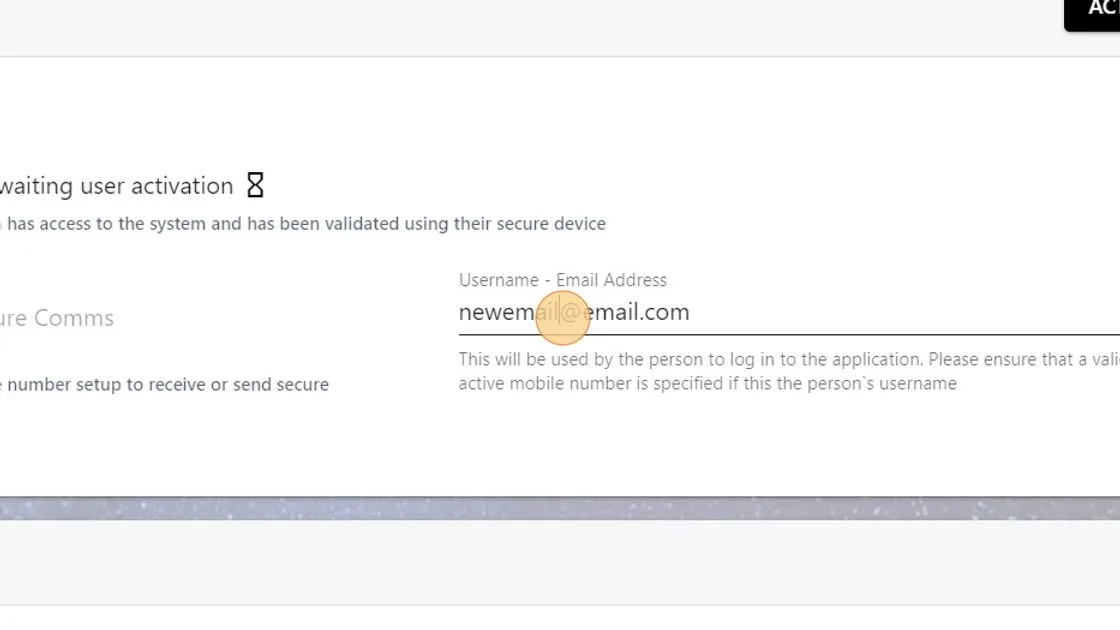
5. Update the field with the user's new email address then press the floppy disk icon next to the field to save the change.
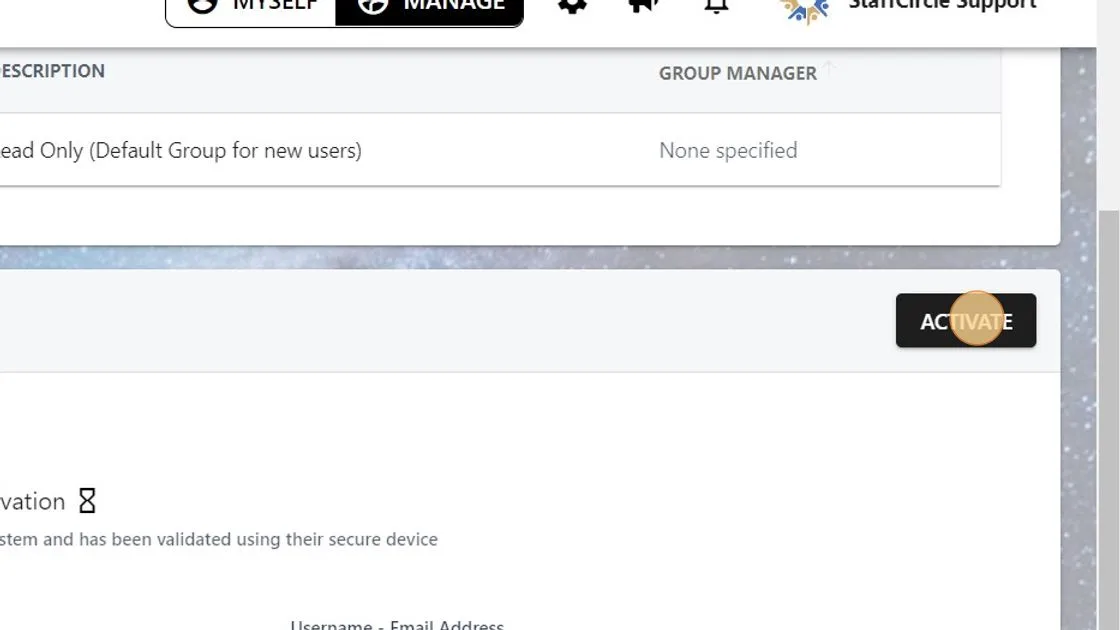
6. Click the "ACTIVATE" button to send the activation/re-activation email to the user's new email address.