Update an employee’s holiday/absence request
This lesson will cover how you can amend an employee’s absence request after it has been submitted. This is regardless as to whether this is a holiday or other absence type. Updating an absence request becomes particularly useful in instances where the employee has a recorded sickness and is away for a longer period of time.
Step One
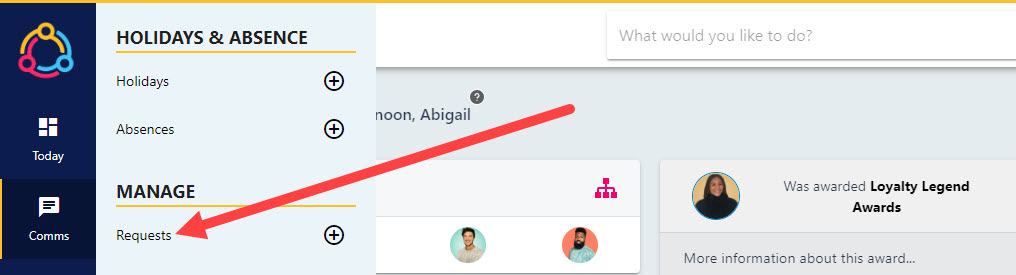
Hover over the Time Off section of the side-bar, then navigate to: Manage ➡️Requests. Select the Requests title to view a list of absence requests.
Step Two
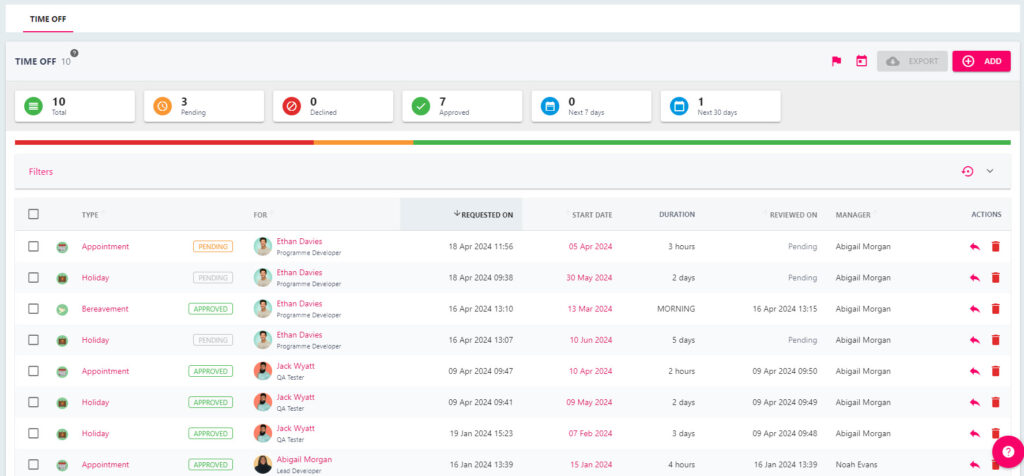
This is the Time Off Management area, which will display a list of all absences pertaining to your direct reports, this includes both holiday and other absence requests. There are several features on this page which can help you manage absence request effectively including the interactive buttons at the top of the page, and the filters bar.
Step Three
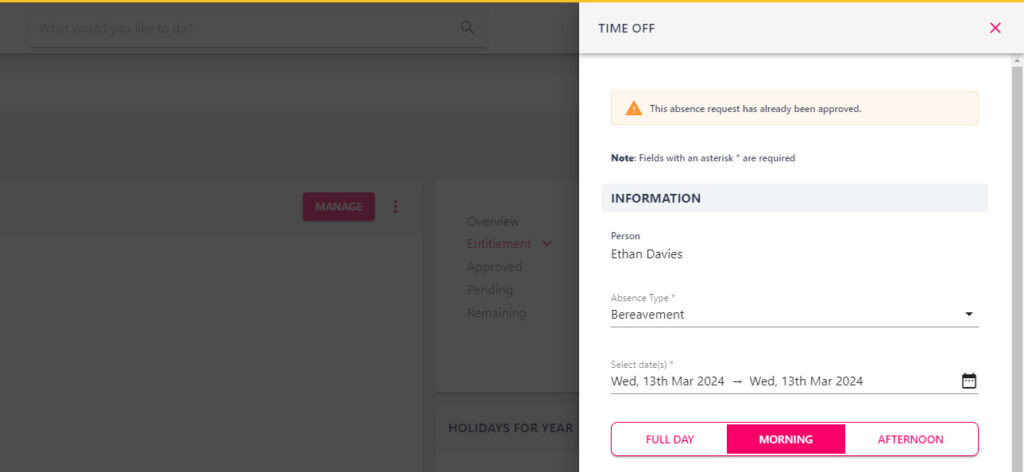
The quickest way to amend an absence request is by clicking on the arrow button underneath the ACTIONS section of the list to open the TIME OFF pull-out drawer to the right-hand side of the screen.
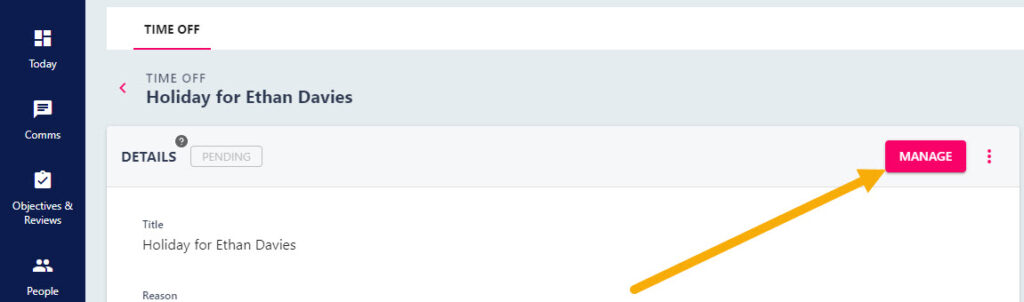
Alternatively, click on the Type of request from the manager list to open the Absence Details page, which will display further information regarding the employee’s absences.
Select the MANAGE button (see below). This will open the TIME OFF pull-out drawer.
Step Four
In the TIME OFF pull-out drawer, you will be able to see the details of the absence request. Adjust the fields as appropriate. Factors you may wish to update are the dates of the absence, or the absence type.
Step Five
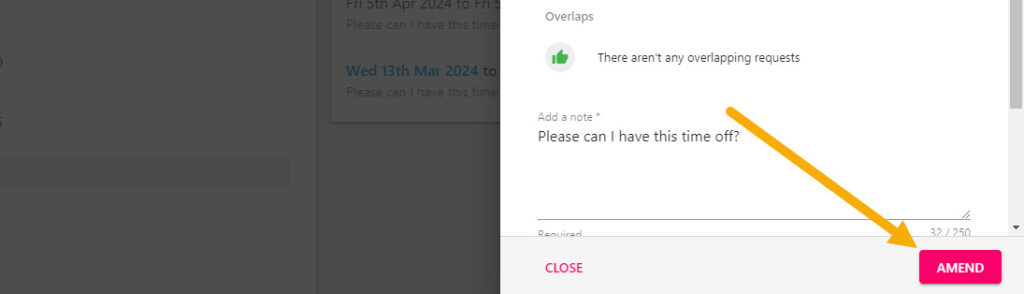
Click the AMEND button to save the changes against the employee’s absence.